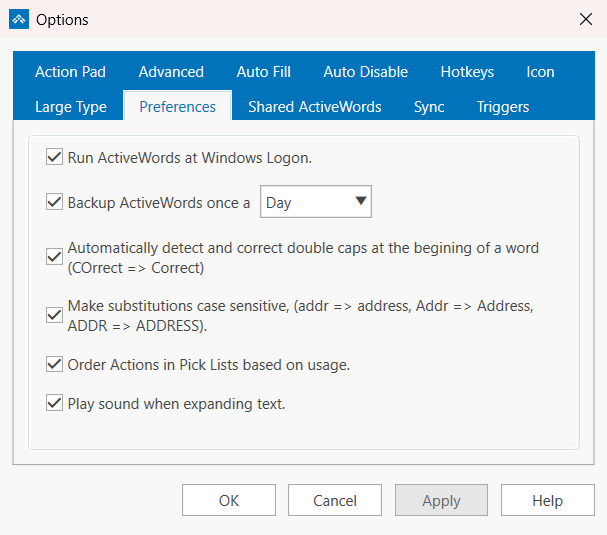
ActiveWords can play a short confirmation sound each time it substitutes text, so you know an Action fired without looking away from what you are typing. It is a single checkbox on the Preferences tab in Options, labelled Play sound when expanding text.
Turn The Sound On Or Off
- Right-click the ActiveWords floating icon or the ActiveWords icon in the system tray, then choose Options.
- Open the Preferences tab.
- Check Play sound when expanding text. to hear the sound, or clear the checkbox to keep substitutions silent.
- Click OK to save and close, or Apply to save and stay in Options.
What You Hear
- One short sound, about a tenth of a second, each time a substitution completes.
- ActiveWords plays its own sound file,
ActiveWords.wav, installed with the program inC:\Program Files\ActiveWords 5\Sounds\. - It is not a Windows system sound, so it does not appear in Change System Sounds and cannot be swapped there. Your Windows volume and output device still control how loud it is.
Note: If you do not hear anything, first confirm the checkbox is checked, then check your Windows volume and output device. If your PC is muted, ActiveWords cannot play the sound.
Not The Same As The Windows Default Beep
Windows plays its own Default Beep when you type somewhere that does not accept text, such as the Windows Desktop. That sound comes from Windows, not from ActiveWords, and clearing Play sound when expanding text will not stop it. Turn it off in Windows sound settings instead.
Related FAQs
- Options – The Preferences tab and every other Options tab
- Turn Off the Windows Default Sound – Silence the Windows beep you hear when typing where there is no cursor
- Adding Words and Actions – Create the Words that trigger substitutions