Opening an external ActiveWords database lets you edit the Words and Actions stored in a separate .awdb file without importing them into your personal data. Administrators can use this workflow to maintain the source file for Shared ActiveWords.
Note: Opening an external database is different from importing or restoring a file. Import adds data to your current database. Restore replaces your current database. Opening an external database temporarily makes the selected .awdb file the active database so you can edit that file directly.
What Happens While the External Database Is Open
ActiveWords works with one active database at a time. Opening an external database does not merge the two files — it swaps which file ActiveWords is using, until you exit.
- Your own Words and Actions are unavailable for the duration. Only the Words in the external file will trigger.
- Every change you make is written to the external file, not to your personal data.
- ActiveWords restarts twice: once when it opens the external file, and again when you exit and it reloads your own data.
- Your personal
.awdbfile is left untouched on disk the whole time.
Before You Open the File
- Make sure you have permission to update the external
.awdbfile and its folder. - Create a backup copy of the file before editing it.
- If the file supplies Shared ActiveWords, confirm that you selected the source file currently assigned to users.
- Close any other program or ActiveWords installation that may be editing the same file.
Open the External Database
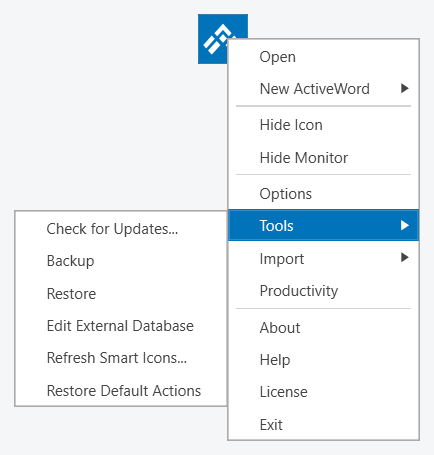
- Right-click the ActiveWords floating icon, select Tools, then Edit External Database.
- Read the ActiveWords Database to Edit notice and click OK. It confirms that you will be prompted to save when you exit, and that ActiveWords then restarts with your primary database.
- Browse to the external
.awdbfile, select it, and click Open. - ActiveWords restarts, closing your personal data file and loading the selected file as the active database.
- The ActiveWords License dialog appears, because the external file carries no license of its own. Click Add License and supply a valid license. Until the file is licensed the icon menu offers only About, Help, License, Check for Updates and Exit, so no editing is possible.
Edit the Words and Actions
While the external database is active, changes you make apply to that file instead of your personal ActiveWords data. Add, edit, or remove Words and Actions as needed.
If the file is used for Shared ActiveWords, assigning the shared Actions a common Tag makes them easier to find and maintain.
Because the external file is the active database, you can trigger its Words to test them exactly as a user will experience them. Type a Word and confirm the Action behaves as expected before you save.
Save the File and Return to Your Personal Data
- Right-click the ActiveWords floating icon and select Exit when you finish editing.
- At the ActiveWords Save Database prompt, click Yes to save your changes to the external file.
- The prompt states that the license applied to the external database will be deactivated. Click Yes to save the changes and remove the license.
- ActiveWords restarts on its own and loads your personal ActiveWords data file as the active database. You do not need to start it again yourself.
If the external file supplies Shared ActiveWords, assigned clients detect the updated file and replace the previous shared data with the new version.
Things to Watch For
- Only one person should edit a shared file at a time. If another administrator has the same file open, whoever saves last overwrites the other’s changes.
- Keep the external file in the same network location. Assigned clients look for it at the exact path they were given, and an assignment is dropped if the path stops resolving.
- Make a backup copy before you start. Saving overwrites the external file in place, and there is no undo.
- Give yourself time to finish in one sitting. Your own Words and Actions stay unavailable until you exit the external database.