Use Options to configure how ActiveWords looks, starts, triggers Actions, fills in new Words, syncs your data, and handles advanced settings. Right-click the ActiveWords floating icon or the ActiveWords icon in the system tray, then choose Options.
ActiveWords 5 has eleven Options tabs, listed alphabetically across the top of the dialog. Every tab shares the same four buttons at the bottom: OK saves and closes, Cancel discards your changes, Apply saves without closing, and Help opens support.
Options Tabs
- Action Pad: what the Action Pad searches, its hotkey, and how it looks
- Advanced: default Action type, substitution delivery, and updates
- Auto Fill: description prefixes and Word suggestions when you add an Action
- Auto Disable: programs that switch ActiveWords off while they are in front
- Hotkeys: the three system hotkeys
- Icon: the floating icon and the Monitor text
- Large Type: font, size, and colors for the Large Type display
- Preferences: startup, backup, and typing behavior
- Shared ActiveWords: shared databases you subscribe to
- Sync: the cloud service used to sync or back up your data
- Triggers: built-in and custom Triggers, and the default for new Words
Note: In ActiveWords 4 the Triggers tab and some advanced tools were hidden until you checked Show advanced tools and options on the Preferences tab. ActiveWords 5 removes that checkbox. Every tab and every entry on the icon menu's Tools submenu is available all the time.
Action Pad
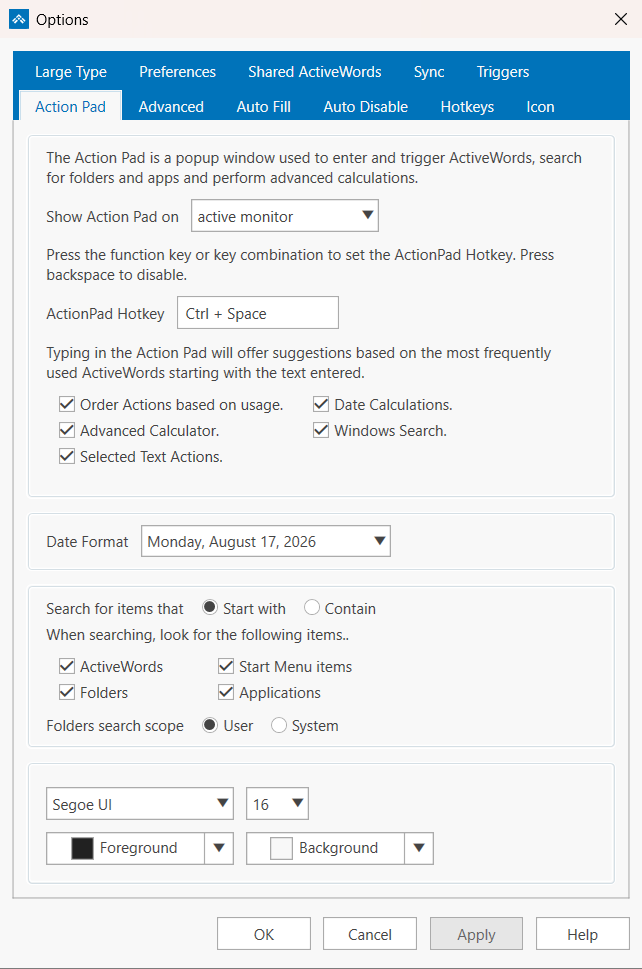
The Action Pad tab controls the popup window you use to enter and trigger Words, search your computer, and run calculations. It has four groups.
- Show Action Pad on: which display the Action Pad opens on. Choose primary monitor, mouse monitor, or active monitor.
- ActionPad Hotkey: the key combination that opens the Action Pad,
Ctrl + Spaceby default. Click in the field and press the keys you want. Press Backspace to disable it. This is the only place in Options where the Action Pad hotkey is set. - Order Actions based on usage.: suggestions are ranked by the Words you use most.
- Date Calculations., Advanced Calculator., Selected Text Actions., and Windows Search.: turn each kind of result on or off.
- Date Format: how dates are written when the Action Pad returns one. Eleven formats are offered, from
8/17/2026toMonday, August 17, 2026. - Search for items that: Start with or Contain what you type.
- When searching, look for the following items..: ActiveWords, Folders, Start Menu items, and Applications.
- Folders search scope: User limits the search to your own user profile, System searches the whole computer.
- Appearance: the font, size, Foreground color, and Background color of the Action Pad.
Note: Clearing Windows Search. greys out the whole lower group, including the item checkboxes and both sets of radio buttons. Leave Windows Search. checked if you want to change what the Action Pad looks for or how it matches.
See ActionPad and Windows Search for more on this tab.
Advanced
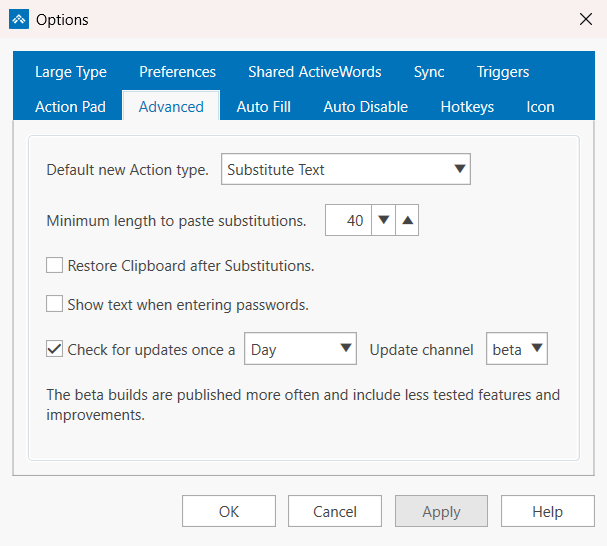
- Default new Action type.: the Action type pre-selected when you create a new Action. Any of the eight types can be the default: Launch Program, Launch Windows App, Open Document, Open Folder, Open URL, Script, Substitute Content, or Substitute Text.
- Minimum length to paste substitutions.: substitutions shorter than this many characters are typed out as keystrokes instead of pasted. The default is 40, and the range is 5 to 256.
- Restore Clipboard after Substitutions.: puts your previous Clipboard contents back after a pasted substitution.
- Show text when entering passwords.: normally ActiveWords stops monitoring in password fields. Check this if you want typed text shown in the Monitor there as well.
- Check for updates once a Day, Week, or Month, and the Update channel: stable or beta. Beta builds are published more often and include less tested features.
See Clipboard Issues and Password Fields and the Text Monitor for the settings on this tab that affect substitutions and monitoring.
Auto Fill
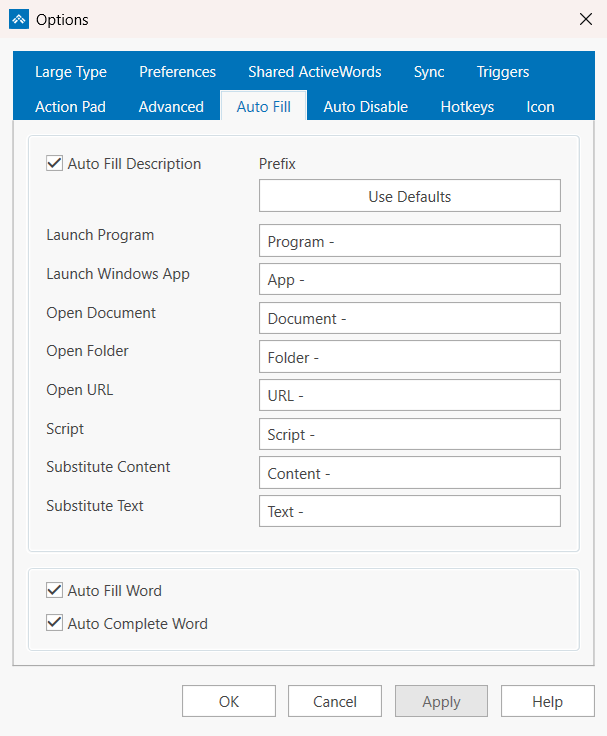
Auto Fill Description writes a description for you when you create an Action, using a prefix that depends on the Action type. You can edit any prefix, and Use Defaults puts them all back. The eight prefixes are:
- Launch Program:
Program - - Launch Windows App:
App - - Open Document:
Document - - Open Folder:
Folder - - Open URL:
URL - - Script:
Script - - Substitute Content:
Content - - Substitute Text:
Text -
Two more settings control the Word itself. Auto Fill Word suggests a Word based on what you are adding, and Auto Complete Word completes the Word as you type it.
Auto Disable
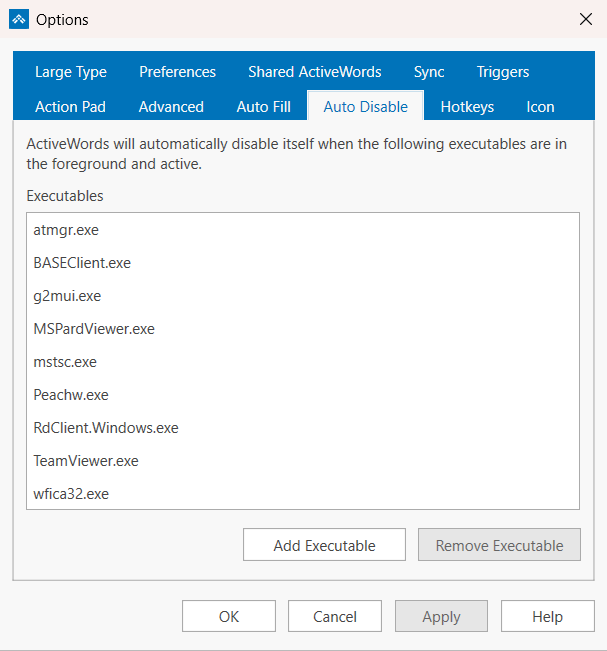
ActiveWords disables itself automatically while any program on this list is in the foreground and active. The list ships with remote access and terminal clients already in it, such as mstsc.exe, TeamViewer.exe, wfica32.exe, and RdClient.Windows.exe, because Words typed inside a remote session belong to the remote computer. Use Add Executable and Remove Executable to change the list.
See ActiveWords and Remote Access for how this works in a remote session.
Hotkeys
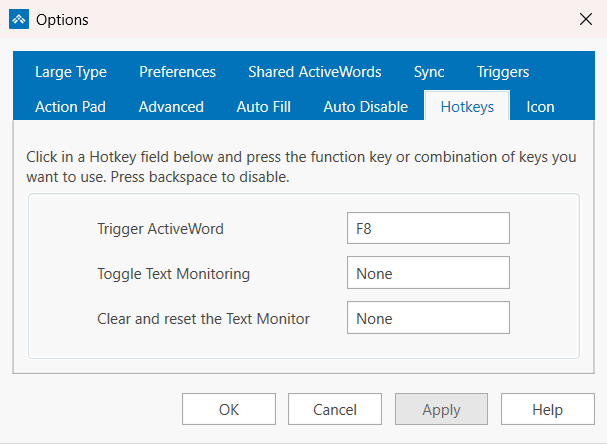
Click in a Hotkey field and press the function key or key combination you want. Press Backspace to disable it. Three system hotkeys live here:
- Trigger ActiveWord: the ActiveWords Key,
F8by default. Press it after typing a Word to trigger it, or use it with selected text. - Toggle Text Monitoring: turns text monitoring on and off. Not set by default.
- Clear and reset the Text Monitor: empties the Monitor and starts it fresh. Not set by default.
The Action Pad hotkey is not on this tab. It is set on the Action Pad tab. Hotkeys for individual Actions are set in the Action editor. See Hotkeys.
Icon
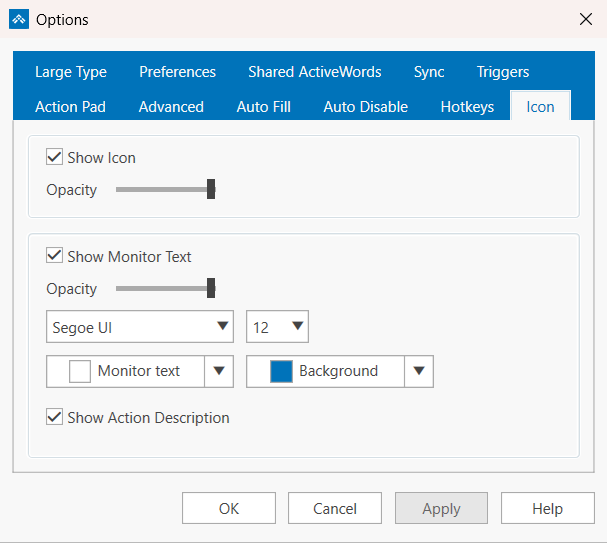
This tab covers the floating ActiveWords icon and the Monitor text that appears next to it.
- Show Icon and its Opacity slider control whether the floating icon appears and how solid it looks.
- Show Monitor Text and its own Opacity slider control the Monitor, which shows what ActiveWords has seen you type.
- The Monitor's font, size, Monitor text color, and Background color are all set here.
- Show Action Description adds the Action's description to the Monitor when a Word is recognized.
You can also hide the icon or the Monitor straight from the icon's right-click menu, using Hide Icon and Hide Monitor.
Large Type
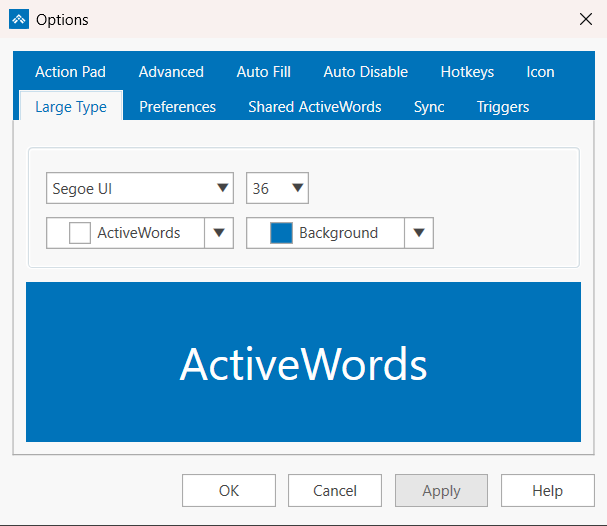
New in ActiveWords 5. Set the font, size, text color, and Background color used by the Large Type display. A live preview below the controls shows the result as you change it, so you can check readability before you close Options. The defaults are Segoe UI at 36 points, white text on ActiveWords blue.
See Large Type for how to display selected text this way.
Preferences
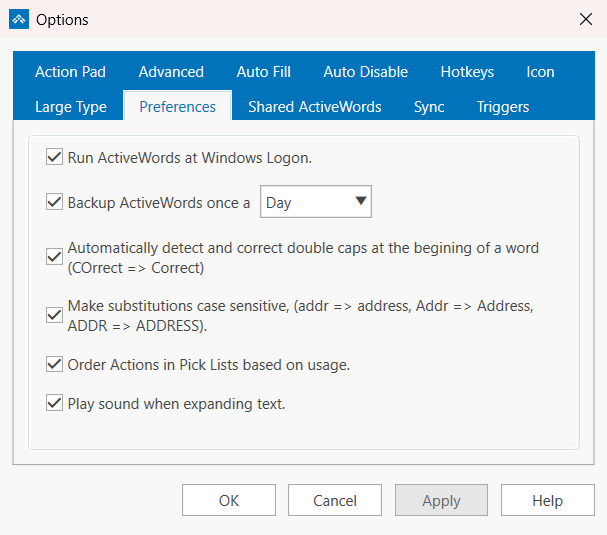
- Run ActiveWords at Windows Logon.: starts ActiveWords with Windows.
- Backup ActiveWords once a Day, Week, or Month: schedules an automatic backup of your data.
- Automatically detect and correct double caps at the begining of a word (COrrect => Correct): fixes two capitals at the start of a word as you type.
- Make substitutions case sensitive, (addr => address, Addr => Address, ADDR => ADDRESS).: matches the capitalization of the Word you typed in the substituted text.
- Order Actions in Pick Lists based on usage.: puts the Actions you run most at the top of a Pick List.
- Play sound when expanding text.: plays a short confirmation sound each time a substitution completes.
See Backing Up Your ActiveWords Data and Play Sound When Expanding Text.
Shared ActiveWords
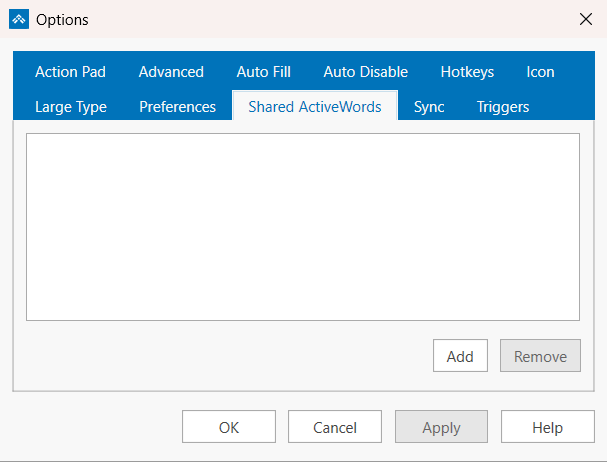
Lists the shared ActiveWords databases you have subscribed to, with Add and Remove buttons. The list is empty until you add one. A shared database lets a team use the same Words and Actions from one file.
See Shared ActiveWords.
Sync
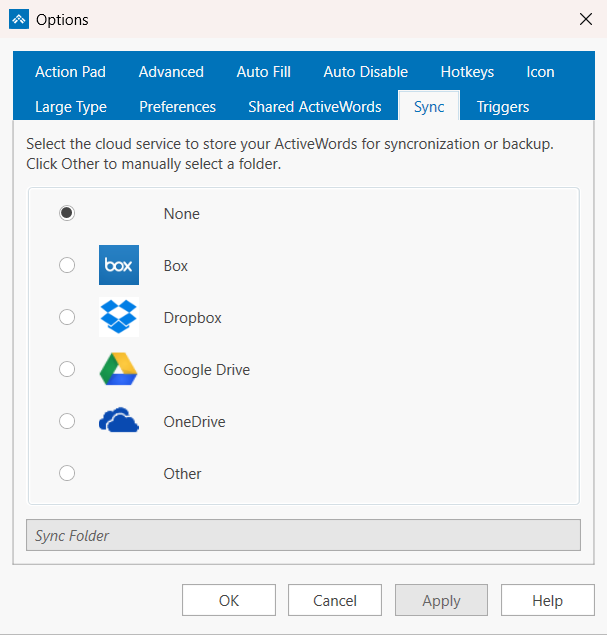
Choose the cloud service that stores your ActiveWords data for syncing or backup: None, Box, Dropbox, Google Drive, OneDrive, or Other. ActiveWords finds the folder for the named services on its own. Choose Other to type or browse to a Sync Folder yourself.
See ActiveWords Sync, OneDrive setup, Citrix ShareFile setup, and Reset ActiveWords Sync.
Triggers
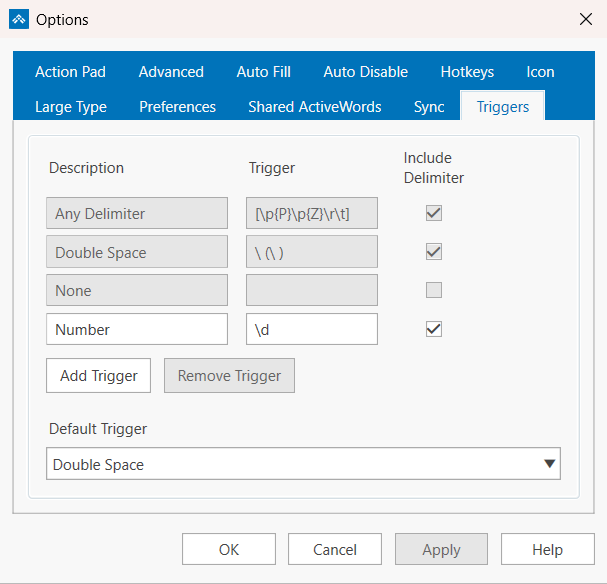
Lists every Trigger with its Description, its Trigger pattern, and an Include Delimiter checkbox. The three built-in Triggers cannot be edited or removed:
- Any Delimiter, pattern
[\p{P}\p{Z}\r\t] - Double Space, pattern
\ (\ ) - None, which has no pattern because it only triggers from the Action Pad or the ActiveWords Key
Use Add Trigger and Remove Trigger for your own custom Triggers, and Default Trigger to pick the Trigger that new Words start with.
See Triggers for the full explanation, including custom Trigger patterns.