Tags help you organize, filter, and quickly find your Words and Actions. In ActiveWords 5, tags are accessed through a tag icon in the main window instead of a side column.
Where to Find Tags (Version 5)
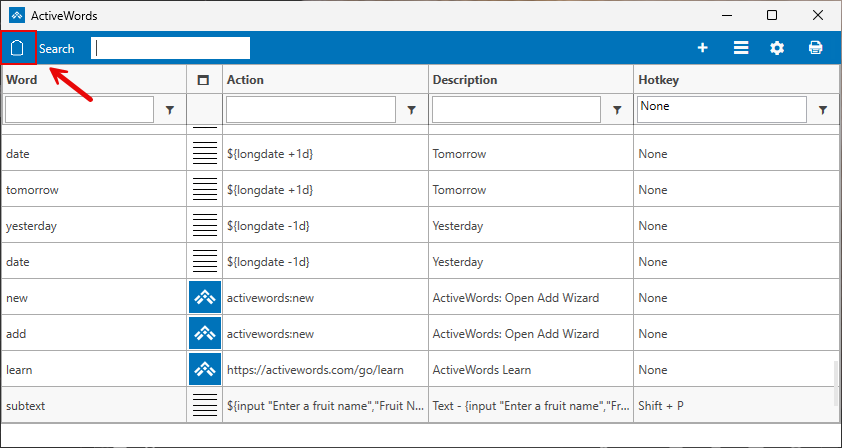
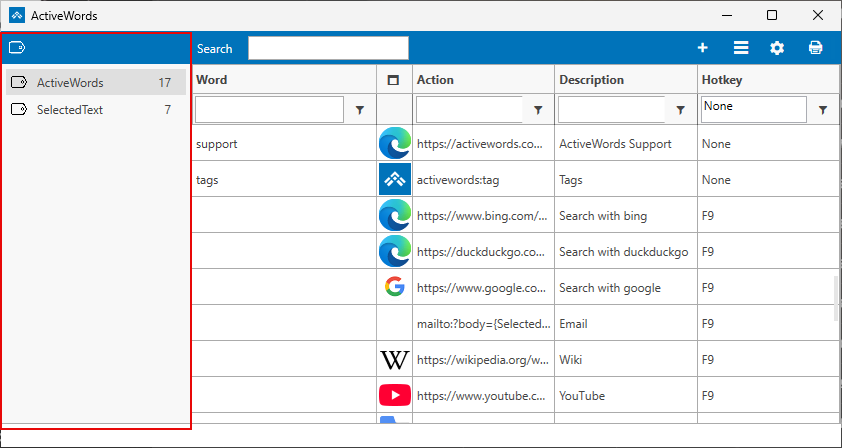
Click the tag icon in the main window to open the tags view. The icon shows your tags and lets you work with them in one place. When the tags view is closed, all Actions are displayed in the main list.
What You Can Do with Tags
- View and filter – Select a tag to see only the Actions associated with that tag in the list.
- Create tags – Right-click selected Actions in the list and choose "Tag" from the context menu, or assign a tag when adding or editing an Action.
- Rename and delete tags – Right-click a tag to rename or delete it as needed.
- Group and organize – Use tags to group related Actions (e.g., by project, client, or topic) so you can find and trigger them quickly.
Importing and Tags
When you import a file (e.g., a Shared ActiveWords file or Addin), ActiveWords can present a list of the imported Actions and let you assign or apply tags to them. This makes it easy to keep imported content organized and to filter it later.
Triggering a Tag
Tags can be triggered like Words. Trigger a tag with a double space or the ActiveWords Key to see a list of all Actions associated with that tag, then choose one to run. You can associate an Action with multiple tags.
Addins and Shared ActiveWords
ActiveWords Addins and Shared ActiveWords files often assign a tag to each included Action so you can easily find, reference, and edit them. When exporting or sharing, grouping Actions under one tag can simplify creating and managing the shared file.
Related FAQs
- List View – Create and edit actions
- Shared ActiveWords – Export and share Words and Actions
- ActiveWords Sync – Sync data across devices