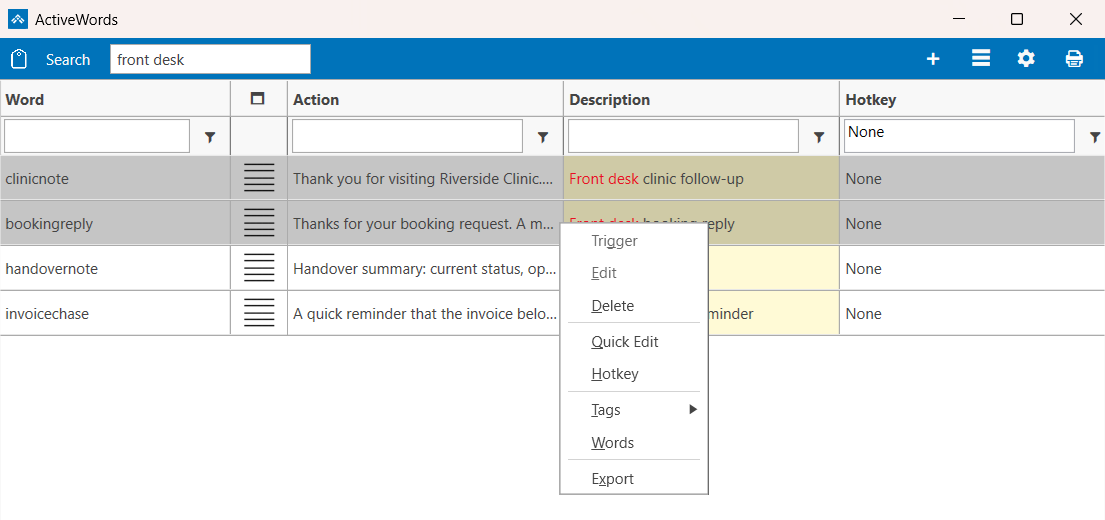
Quick Edit (also called Bulk Edit) lets you change many Actions in one step instead of opening each one. It is one of two items on the right-click menu of the ActiveWords list that work this way, and it helps to know which one you want before you start:
- Quick Edit changes what your Actions contain. It finds a word or phrase and replaces it everywhere it appears in the Actions you selected.
- Words changes what runs them. It manages the Words attached to the Actions you selected, and the Trigger each Word uses.
Both are useful when something changes across your saved text. A company renames itself, a support address changes, or a URL moves. Fix it once and every selected Action is updated. Both are covered below.
Where to Find Quick Edit
- Open the ActiveWords list.
- Select the Actions you want to change. Click one row, or hold
Shiftto select a range, orCtrlto pick several. - Right-click the selection, or press
Shift+F10. - Choose Quick Edit.
How to Use Quick Edit
The Quick Edit window has two checkboxes and two boxes to fill in.
- Under Search in, tick Action, Description, or both. This decides which part of each Action is searched. Nothing is ticked when the window opens.
- Type the text you are looking for in Search for.
- Type the new text in Replace with.
- Click Update.
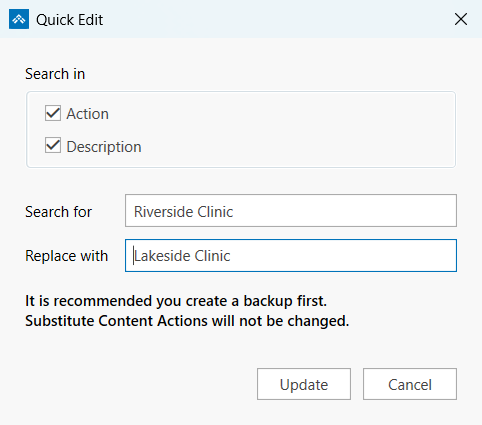
Update stays greyed out until you tick at least one box under Search in and type something in Search for. Replace with can be left empty. If you leave it empty, the text you searched for is deleted wherever it appears.
What Quick Edit Changes
- Every Action you selected. Select three Actions and all three are updated in the same pass.
- Every occurrence, not just the first. If the phrase appears three times in an Action, all three are replaced.
- Nothing you did not select. Other Actions containing the same text are left alone, even when they are visible in the list.
- Only the parts you ticked. If you tick Action but not Description, the Descriptions are untouched.
- Not the Word. The Words that trigger your Actions are never searched or changed here. Use Words for those.
Quick Edit matches upper and lower case exactly. Searching for Clinic will not find clinic. Check your capitalisation if a replacement does not happen.
It is not limited to text substitutions either. It also works on Actions that store a target, such as an Open URL Action, where it edits the address itself.
When Quick Edit Is Greyed Out
Quick Edit appears on the menu but cannot be clicked in two cases.
- A Substitute Content Action is in the selection. These hold formatted content and Quick Edit does not change them. One is enough to disable it, so if the menu item is greyed and you expected it to work, check whether a Substitute Content Action crept into your selection. Leave it out and the rest can be edited together.
- A built-in ActiveWords Action is in the selection, such as
showoroptions. Built-in Actions cannot be edited this way.
Changing the Words That Trigger Your Actions
Select one or more Actions, right-click, and choose Words. This opens the Associate window, which lists every Word that triggers the Actions you selected, each with its own Trigger.
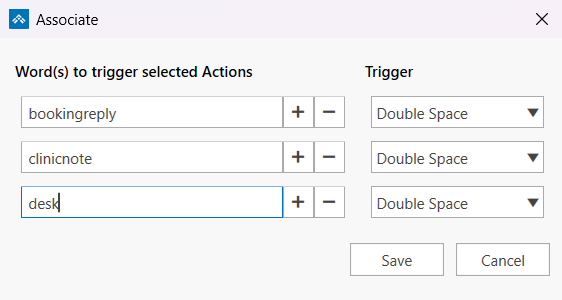
- Add a Word by typing it in the empty row at the bottom and choosing its Trigger. An Action can have several Words, so you can give a long Word a short alternative without losing the original.
- Remove a Word with the minus button beside it.
- The Trigger list offers the built-in Triggers plus any Custom Triggers you have created, so a Word can be set to fire on whatever you prefer.
Click Save to apply your changes, or Cancel to discard them.
One thing to know before you select several Actions at once: the Words listed in this window apply to every Action you selected. That is useful when a group of Actions should share the same Words. If you want to change one Action's Words or Trigger on its own, select just that Action.
Example: Switching a Set of Words to a Semicolon
Say you want a group of Words to run when you type a semicolon, instead of waiting for a double space. That takes two steps.
- Create the Trigger. Open Options, go to the Triggers tab, and click Add Trigger. Give it a description, such as
Semicolon, and type;as the Trigger itself. Click OK. See the Triggers FAQ for more on Custom Triggers. - Point the Words at it. Select the Actions you want to change, right-click, and choose Words. Set the Trigger beside each Word to
Semicolon, then click Save.
Those Words now run as soon as you type a semicolon after them. Your new Trigger stays in the list, so you can use it for any other Word later.
Note: Quick Edit applies the change straight away. There is no confirmation prompt and no undo, and nothing is reported if the text you searched for is not found. The window simply closes. Make a backup before a large replacement, using Tools then Backup on the ActiveWords icon menu.