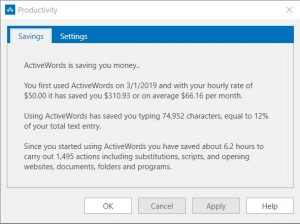
ActiveWords helps you save time, reduce repetitive typing, and improve the quality of your work. The Productivity dialog estimates the value of the time you save when you trigger Actions.
Open Productivity
Right-click the ActiveWords icon and choose Productivity.
How Savings Are Estimated
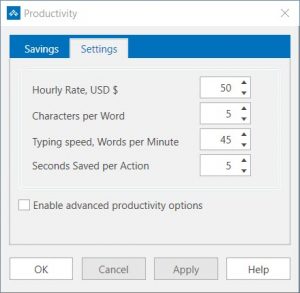
ActiveWords measures keystrokes saved by triggering Substitute Text, Substitute Content, and Script Actions. You set the variables used for the estimate, including typing speed, characters per word, the value of your time, and the estimated time saved each time you trigger an Action.
ActiveWords uses those settings to calculate an estimated value for the time you save.
Productivity Settings
The Productivity dialog shows how much you are using ActiveWords and estimates the time-saving benefits. These measurements are estimates. Actual time savings cannot be perfectly measured because there are many unknowns, such as how you might otherwise complete the same task.
Personalizing the variables in Productivity Settings can give you a practical estimate of the value ActiveWords provides for your work.
Action Counts and Advanced Options
ActiveWords counts how often you use Words to navigate or run Actions, such as opening a file, folder, program, or web page. You can set the average number of seconds saved each time a Word triggers these Actions.
By default, each Action type except Substitute Text uses the same Seconds Saved per Action value. Turning on Enable advanced productivity options lets you customize the estimated seconds saved by Action type.
Auto-Corrections
Auto-corrections, such as beleive=believe, are Substitute Text Actions. In most auto-corrections, the number of characters substituted is similar to the number of characters typed, so the direct keystroke savings may be small.
The real benefit is the time you do not spend correcting misspellings, plus the improved quality of your work. Universal auto-correct helps reduce misspelled words in materials you share with customers, colleagues, and others.
Review Usage by Action
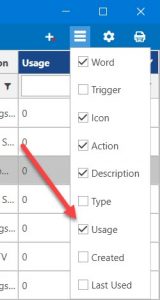
You can review how many times each Action has been triggered by viewing the Usage column in the List View.