Support and Learn V5
All Topics
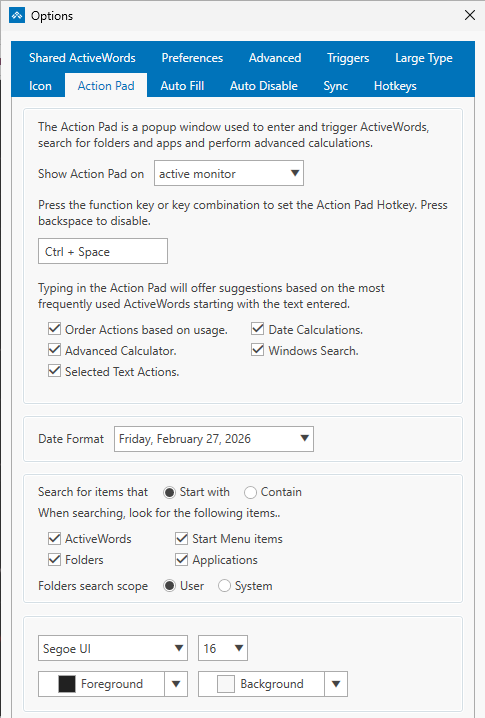
The Options → ActionPad tab is where you configure everything about the ActionPad: what appears when you search, how search works, and how the ActionPad looks. This FAQ describes each option on the tab.
Where to Find It
Right-click the ActiveWords icon (system tray or floating icon) and choose Options. Open the ActionPad tab. In ActiveWords 5, the ActionPad hotkey is configured only here, so all ActionPad settings are in one place.
ActionPad Hotkey
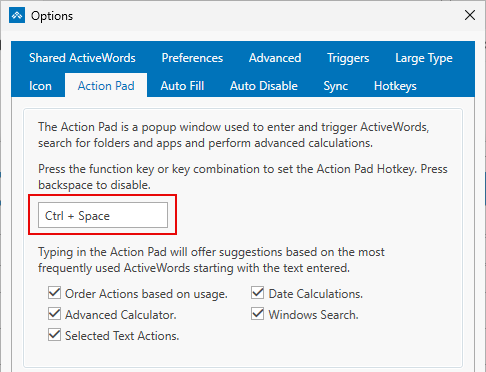
Set the key combination that opens the ActionPad (default: Ctrl+Space). This is the only place in Options where you can change the ActionPad hotkey.
What Shows in the ActionPad
Use the toggles on this tab to choose what the ActionPad searches when you type. You can turn each category on or off:
- ActiveWords – Your Words and their associated actions
- Folders – Files and folders on your computer (requires Window Search to be enabled)
- Applications – Installed programs, including packaged apps from the Microsoft Store (requires Window Search to be enabled)
- Start Menu items – Programs and shortcuts in the Windows Start Menu (requires Window Search to be enabled)
- Selected Text actions – Type or paste text, press Enter, and choose an action (e.g., Google Translate, Bing search) to run with that text. See Selected Text.
- Advanced Calculator – Math expressions in the ActionPad (e.g.,
25*4). See Advanced Calculator. - Date Calculations – Date arithmetic in the ActionPad (e.g.,
today+1month). See Date Calculations. - Windows Search – When enabled, the ActionPad can search your computer for folders, applications, and Start Menu items. See Windows Search.
Window Search Options
When Window Search is enabled, two additional settings control how search works:
- How search matches – Starts with (results must begin with what you type) or Contains (results can match anywhere in the name)
- Where to search – System (entire computer) or User (only files and folders under your user profile)
See Window Search for details.
Appearance
The ActionPad tab also includes appearance settings: font size, color, and other display options.
Related FAQs
- ActionPad – Overview and how to use the ActionPad
- Selected Text – Act on highlighted or pasted text
- Advanced Calculator – Math in the ActionPad
- Date Calculations – Date arithmetic in the ActionPad
- Windows Search – Search folders, applications, and Start Menu
- Hotkeys – Other hotkeys (ActionPad hotkey is set on this tab only)
The ActionPad is a quick-launch input field that appears on demand. It provides a single place to enter and trigger your Words, act on text using Selected Text actions, search your computer, perform calculations, and more.
Opening the ActionPad
Press Ctrl+Space (the default hotkey) to open the ActionPad. You can change this hotkey in Options → ActionPad tab. In ActiveWords 5, the ActionPad hotkey is configured in one place only—the ActionPad tab—to avoid confusion.
What the ActionPad Can Do
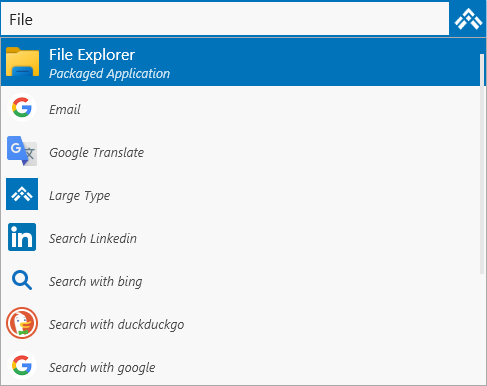
The ActionPad has been significantly extended in Version 5. When you type, it searches according to your settings in Options. By default, it can find:
- ActiveWords – Your Words and their associated actions
- Folders – Files and folders on your computer
- Applications – Installed programs (including packaged apps from the Microsoft Store)
- Start Menu items – Programs and shortcuts from the Windows Start menu
- Selected Text actions – Type or paste text, press Enter, and choose an action (e.g., Google Translate, Bing search) to run with that text
- Advanced Calculator – Enable for math calculations in the ActionPad
- Date Calculations – Enable for date arithmetic (e.g.,
today+1month) - Math Calculations – Enable for math in the ActionPad (e.g., 2+2)
- Window Search – When enabled, search your computer for folders, applications, and Start Menu items
- Calendar Functions – Enable for date expressions (e.g., today, next Friday)
Select any result and press Enter (or click) to trigger it. The action runs in the context where you were working.
Note: If typed text does not match any action, only Selected Text actions are shown.
Configuring the ActionPad
Open the ActionPad Options tab to customize what appears and how it behaves.
Using the ActionPad with Selected Text
The ActionPad works seamlessly with Selected Text. Type or paste text into the ActionPad, press Enter, and choose a Selected Text action (such as Google Translate or Bing search) from the results. The action executes instantly with your text.

Using the ActionPad to Trigger Words
You can also use the ActionPad when you don't want to type a Word in your current context (e.g., in a web form or email). Open the ActionPad, type your Word, press Enter, and the associated action runs. Words triggered from the ActionPad do not include a trailing delimiter in text substitutions.
Related FAQs
- Selected Text – Act on highlighted or pasted text
- Hotkeys – Customize the ActionPad hotkey and other shortcuts
The Advanced Calculator lets you perform math calculations directly in the ActionPad. Type a numeric expression and press Enter—the result is substituted immediately. This is useful for quick calculations without leaving your workflow. It supports basic arithmetic plus many advanced functions, constants, and operators; the full scope is too large to document here.
Enabling the Advanced Calculator
Open Options and go to the ActionPad tab. Turn on Advanced Calculator to use math expressions in the ActionPad. When enabled, expressions such as 25*4 or 100/3 are evaluated and the result is inserted.
Using the Advanced Calculator
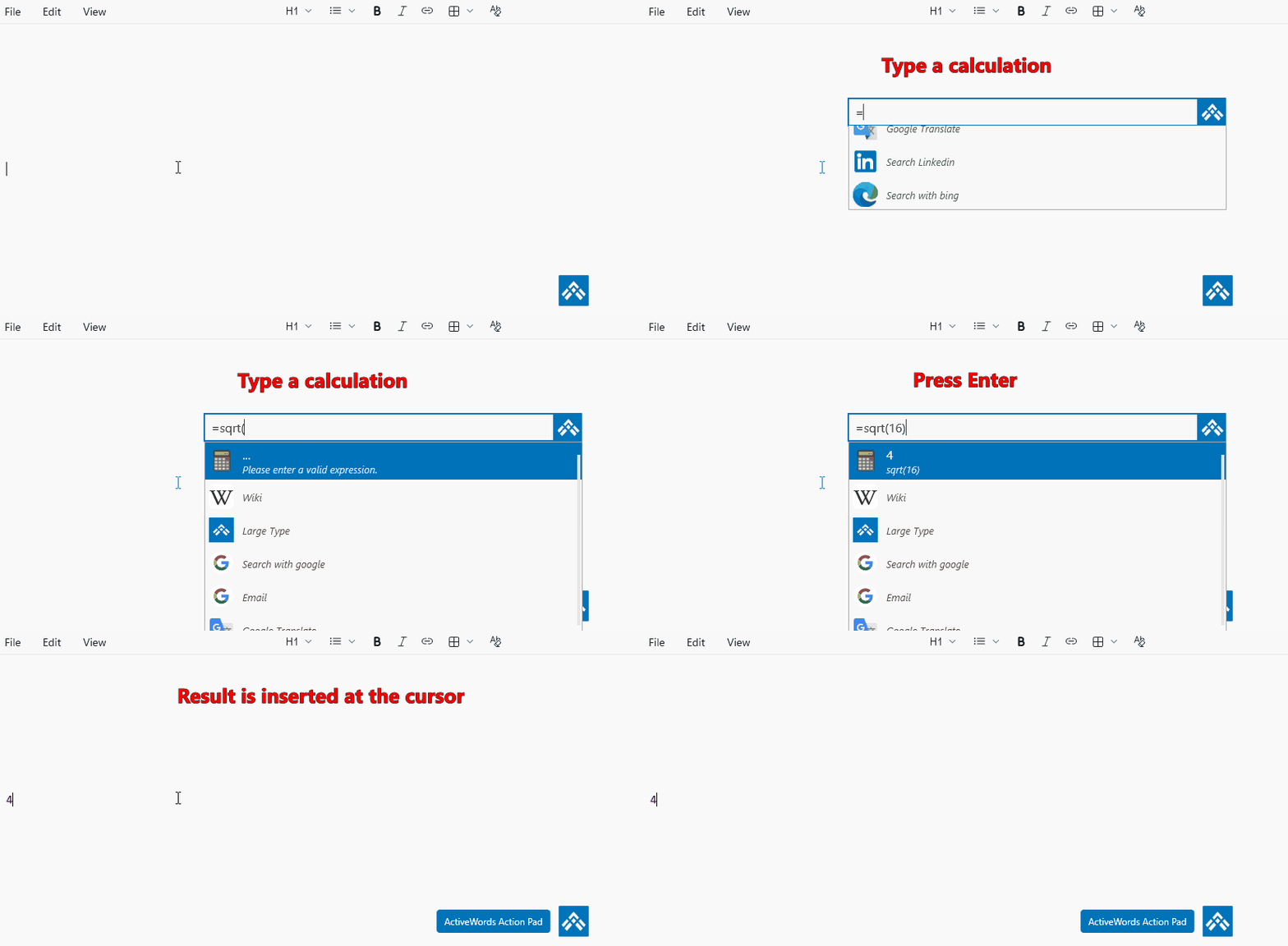
Open the ActionPad (default: Ctrl+Space), type a math expression, and press Enter. The result is delivered in the context where you were working—for example, into a document, email, or Notepad. Expressions that start with a number (e.g. 1+2, 25*4) are evaluated automatically. If your expression starts with a function or constant (e.g. sqrt, sin, pi), type = first so the calculator recognizes it. For example, =sqrt(16) or =sin(pi/2). Examples:
1+2→ 31+2/3+(4*5-10)→ mixed arithmetic2*pior=sqrt(16)→ constants and functions=sin(pi/2)→ 1=sum(n, 1, 100, 1/n^2)→ summation (e.g. sum of 1/n² from n=1 to 100)=int(sqrt(1-x^2), x, -1, 1)→ definite integral (π/2)
Note: When you press Enter, the calculated result is inserted directly into the application where your cursor is currently located (for example, in Notepad, a document, or an email).
See it in action
Related FAQs
- ActionPad – Overview and configuration
- Date Calculations – Date arithmetic in the ActionPad
- Windows Search – Search files, folders, and applications
Date Calculations let you perform date arithmetic directly in the ActionPad and in your actions. Type expressions like today+1m and the result is substituted immediately—no need to look up the date yourself.
Enabling Date Calculations
Open Options and go to the ActionPad tab. Turn on Date Calculations to use date expressions in the ActionPad. On the same tab, set the date format for results: Short date or Long date. Short date is typically numeric (e.g. 3/3/2025); long date includes the day and month name (e.g. Monday, March 3, 2025). The format you choose here applies when you insert a date from the ActionPad or from an action.
Using Date Calculations in the ActionPad
Type a date expression in the ActionPad and press Enter. Use the single-letter units d, w, m, and y (not "day", "week", "month", or "year"). For example:
today+1m– One month from todaytoday+1w– One week from todaytoday-1d– Yesterdaytoday+1y– One year from today
Important: Do not put spaces in date expressions. Use today+1m, not today + 1 m.
See it in action
Set the date format (Short date or Long date) in Options → ActionPad. Then open the ActionPad, type a date expression (e.g. today or today+1w), and press Enter. The result is inserted where your cursor is—for example, into Notepad.
Using Date Calculations in Actions
Date calculations work in Substitute Text and Substitute Content actions too. You can embed date expressions within larger text—for example, a letter header that includes "long date minus one day" so the date updates automatically. This is useful for templates, reports, and any action where the date should reflect today or a relative date.
Related FAQs
- ActionPad – Overview and configuration
- Advanced Calculator – Math expressions in the ActionPad
- Window Search – Search files, folders, and applications
Hotkeys are system-wide key combinations that give you instant access to ActiveWords features. In ActiveWords 5, hotkey management is more flexible and organized. Hotkeys are configured in two primary places:
- In the main ActiveWords window (where you edit individual actions)
- In Options (Hotkeys tab and ActionPad tab)
Where to Configure Hotkeys
Hotkeys are configured either in Options or in the main ActiveWords window, depending on the type of hotkey.
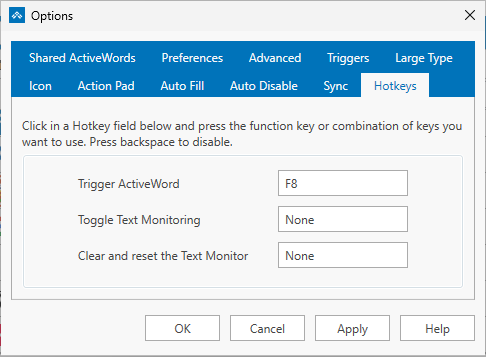
Options → Hotkeys tab – Use this tab for the three system hotkeys that do not relate to a specific action:
- ActiveWords Key (default: F8) – Press after typing a Word to trigger it, or use with selected text for Selected Text actions
- Text Monitoring – Turn text monitoring on or off
- Pause Word recognition – Pause until the next delimiter is entered
Options → ActionPad tab – Use this tab for the ActionPad hotkey (default: Ctrl+Space). In V5, the ActionPad hotkey is configured in one place only to avoid confusion.
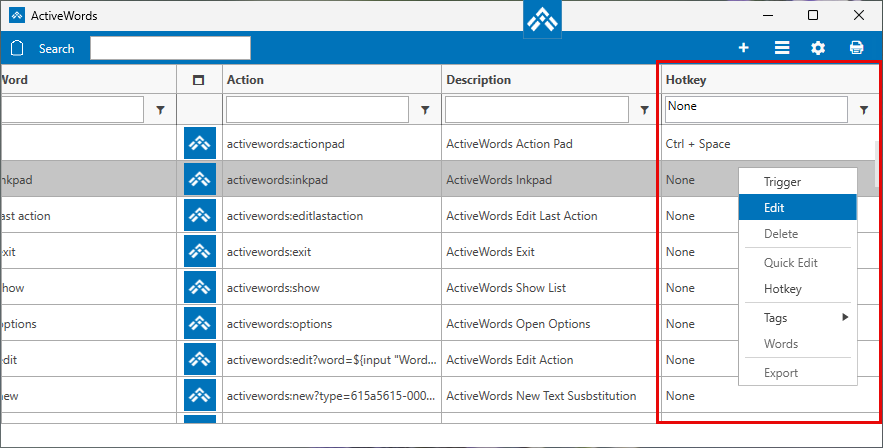
Main ActiveWords window – Assign hotkeys to individual actions here. Open the main ActiveWords window, right-click an action, and set your preferred hotkey in the action editor.
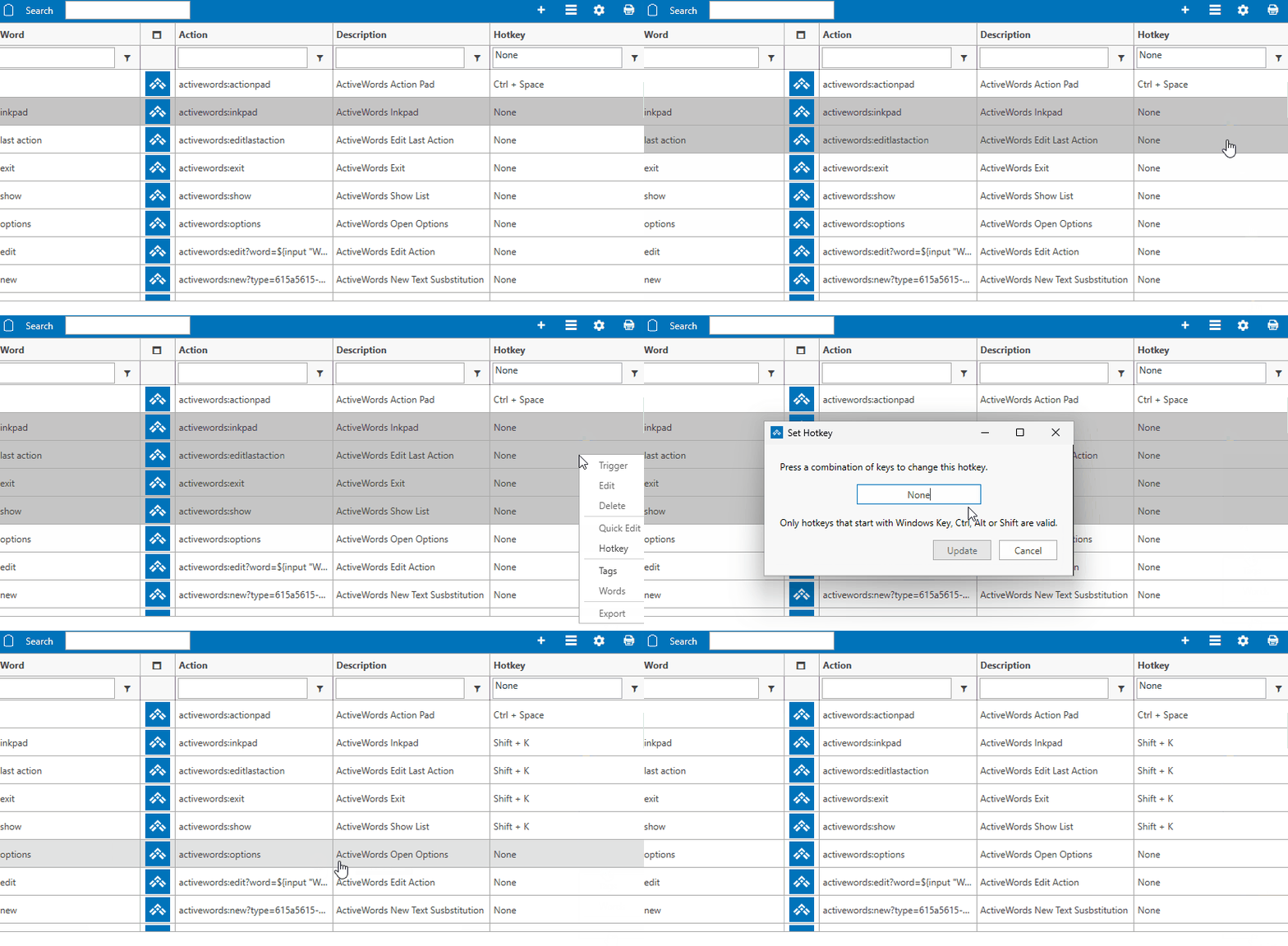
Assigning a Hotkey
To set a hotkey, simply press the key combination you want on your keyboard. ActiveWords captures it and assigns it. No need to type or select from a list.
Using the Same Hotkey for Multiple Actions
You can assign the same hotkey to multiple actions. When you press that hotkey, ActiveWords displays a Pick List showing all actions that use it. Select the one you want and it runs immediately.
This is useful when you want one key to access several related actions—for example, multiple Selected Text actions (Bing, Google Translate, LinkedIn) or several frequently used Words.
Note: You can select multiple actions and assign a hotkey simultaneously.
What's Different in Version 5
- ActionPad hotkey – Now configured only in the ActionPad tab (previously available in multiple places)
- Per-action hotkeys – Assign hotkeys directly when editing any action
- Shared hotkeys – Multiple actions can share the same hotkey; a Pick List lets you choose which one to run
Related FAQs
- ActionPad – Configure the ActionPad hotkey
- Selected Text – Assign hotkeys to Selected Text actions
- Pick Lists – When multiple actions share a hotkey
ActiveWords 5 is currently available as an alpha release. Before installing, it’s important to understand how it interacts with existing versions and what to expect during testing.
This article explains what happens when you install ActiveWords 5 and how to proceed safely.
What to Know Before Installing
ActiveWords 5 is designed for early testing and feedback. While it is stable enough to explore new features, it is not yet a final release.
Before installing, keep in mind:
- ActiveWords 5 replaces ActiveWords 4 during installation
- Some changes are not backward-compatible
- Documentation is still evolving alongside the product
If you depend on ActiveWords daily for critical workflows, review this information carefully.
What Happens When You Install ActiveWords 5
When you install ActiveWords 5, it replaces ActiveWords 4 on your system and begins using a new internal database format.
At install time:
- Your existing ActiveWords data is preserved
- ActiveWords 4 is automatically removed
- ActiveWords 5 starts using its own database structure
Note: Your ActiveWords data is stored in your Windows user profile, not in the Program Files folder. When you install ActiveWords 5, your data is saved here: %AppData%\Roaming\ActiveWords. If you previously used ActiveWords 4, you may also see this folder: %AppData%\Roaming\ActiveWords4. This is why upgrading to ActiveWords 5 does not remove your existing data. Each version stores its data in its own folder.
Your existing actions are available immediately after installation. However, any actions you create or modify in ActiveWords 5 are handled differently due to the new database format.
Returning to ActiveWords 4 If Needed
Installing ActiveWords 5 does not permanently lock you in.
If you decide to return to ActiveWords 4, you can:
- Uninstall ActiveWords 5
- Reinstall ActiveWords 4
When you return to ActiveWords 4:
- ActiveWords 4 uses its original data
- Actions created or modified in ActiveWords 5 do not appear
This allows you to explore ActiveWords 5 as part of the alpha program without committing permanently or risking your existing setup.
Important: ActiveWords 5 uses a new database structure. Actions that are created or edited in ActiveWords 5 cannot be used in ActiveWords 4, and if you switch back to ActiveWords 4, any changes made in ActiveWords 5 will not carry over. This behavior is expected during the alpha phase and supports future development.
Recommended Approach for Testing
If you want to explore ActiveWords 5 safely:
- Avoid making large structural changes if you expect to return to V4
- Use V5 to test new features and workflows
- Treat V5 as a separate environment for experimentation
Power users with large action libraries should be especially mindful of this distinction.
Who Should Install the Alpha
ActiveWords 5 alpha is best suited for:
- Existing users curious about new features
- Power users willing to test and provide feedback
- Anyone comfortable working with early-release software
If you prefer a fully finalized experience, it may be best to wait for a later release.
What to Read Next
To better understand how ActiveWords 5 manages data and why compatibility differs from previous versions, read:
Selected Text (formerly called ActionText in Version 4) acts on any text you select anywhere on your computer and on any text entered in the ActionPad. Selected Text serves as your entry point for services and information, providing instant access to searches, translations, and custom actions—much like the Windows Key, only more powerful.
How to Use Selected Text
- Select any text from any application (web browser, document, email, etc.)
- Press F9 (the default hotkey for Selected Text actions)
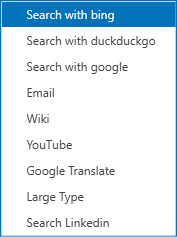
- Choose from the menu of available actions, or if you only have one Selected Text action, it will execute immediately
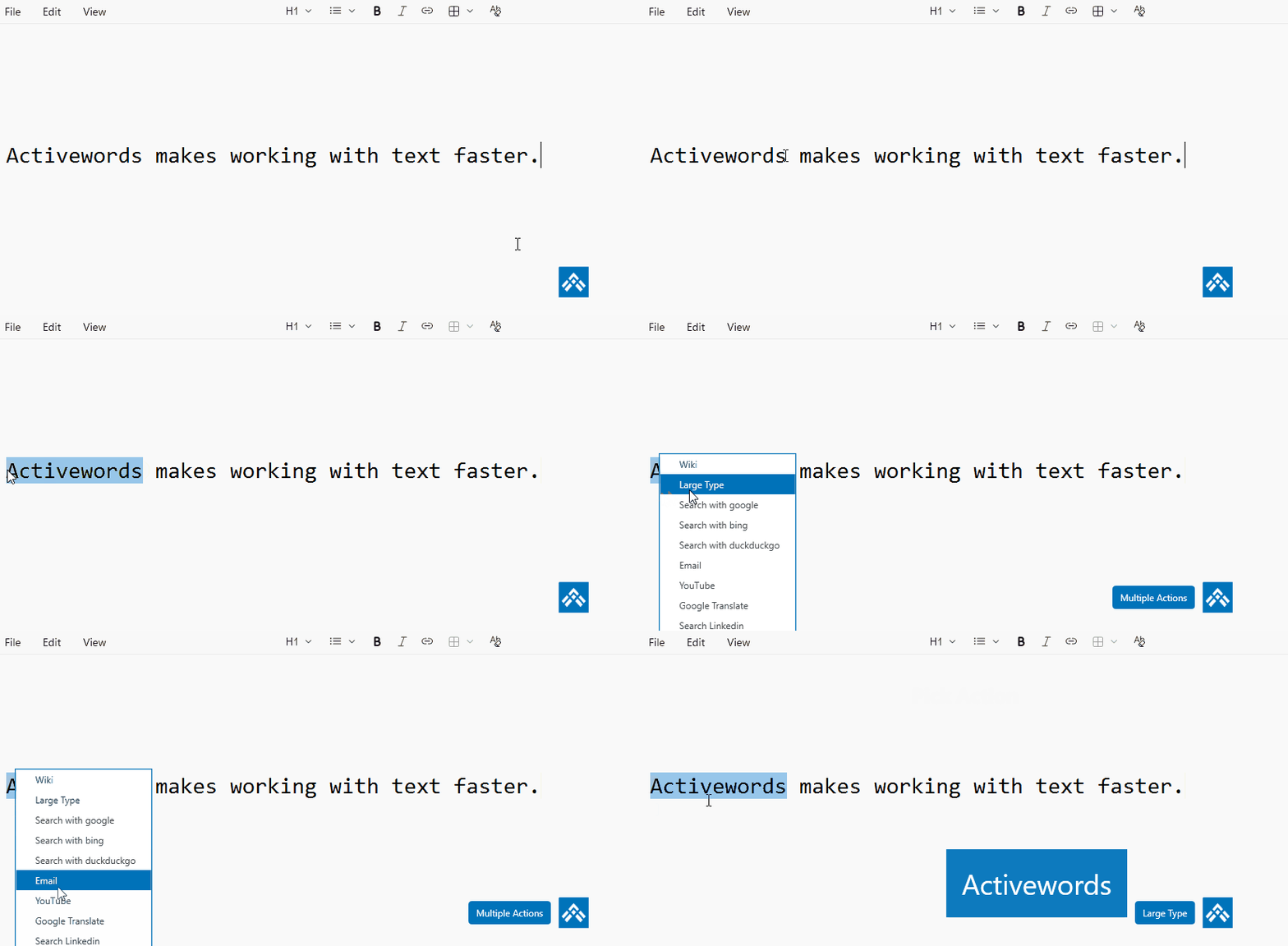
Built-in Selected Text Actions
Your default ActiveWords 5 installation includes several Selected Text actions:
- Bing Search - Search selected text on Bing
- DuckDuckGo Search - Search selected text on DuckDuckGo
- Google Search - Search selected text on Google
- Email - Create a new email using the selected text
- Wikipedia - Look up the selected text on Wikipedia
- YouTube - Search for videos related to the selected text on YouTube
- Google Translate - Translate selected text
- LinkedIn Search - Search for selected text on LinkedIn
- Large Type - Display selected text in a large, easy-to-read format (great for presentations or when you need text to be highly visible)
You can delete or add Selected Text actions to meet your needs. If you only have one Selected Text resource, the action will execute instantly without showing a menu.
Customizing the Hotkey
While F9 is the default hotkey for Selected Text actions, you can customize hotkeys for any action:
- Open the List View in ActiveWords
- Find the action you want to customize
- Right-click on the action and set your preferred hotkey in the popup
- You can even assign the same hotkey to multiple actions—ActiveWords will show a Pick List to choose from
Creating Your Own Selected Text Actions
You can create custom Selected Text actions to work with the text you have highlighted or entered through the Action Pad. These actions use the {SelectedText} command to insert that text into the action when it runs.
How {SelectedText} Works
The {SelectedText} command represents any text you are acting on. When an action runs, it uses either highlighted text or text provided through the Action Pad, depending on context.
This allows the same action to work in multiple situations without modification.
Example: Creating a Wikipedia Search Action
To create a Wikipedia search action:
- Action Type: Open URL
- URL:
https://en.wikipedia.org/wiki/Special:Search?search={SelectedText} - Assign a hotkey or use the default F9 hotkey.
When you run this action, the selected text is passed directly into Wikipedia's search.
Using {SelectedText} in Multiple Actions
The {SelectedText} command can be used in any lookup-style action, such as web searches, translations, or other external tools.
When multiple actions use the same hotkey, ActiveWords displays a Pick List. This lets you choose where to send the selected text, for example to Wikipedia, Bing, or another lookup source.
Beyond Simple Searches
Selected Text actions are not limited to public search engines. They can also be configured to interact with enterprise databases, internal tools, or custom web services, making them a powerful way to connect ActiveWords with your existing systems.
Using Selected Text with ActionPad
Selected Text also works with the ActionPad. In V5, Selected Text options appear within the ActionPad search results. For example, if you type or search for a term in the ActionPad, the system can present Selected Text actions (like Google Translate) as clickable options.
Workflow:
- Open the ActionPad (default: Ctrl+Space)
- Type or paste any text you want to act on
- Press Enter
- Select the information source or action you want from the results (which may include ActiveWords, folders, applications, and Selected Text actions)
- The action executes instantly with your text
Multiple Actions and Pick Lists
If you have multiple Selected Text actions assigned to the same hotkey (like F9), ActiveWords will display a Pick List showing all available options. Simply select the action you want to use.
Tips
- If you only have one Selected Text action, it will execute immediately without showing a menu
- Selected Text actions can access enterprise databases and custom web services
- You can use the
{SelectedText}command in any action type that supports text substitution - If the text you select is a known ActiveWord, the associated action for that Word will be carried out instead
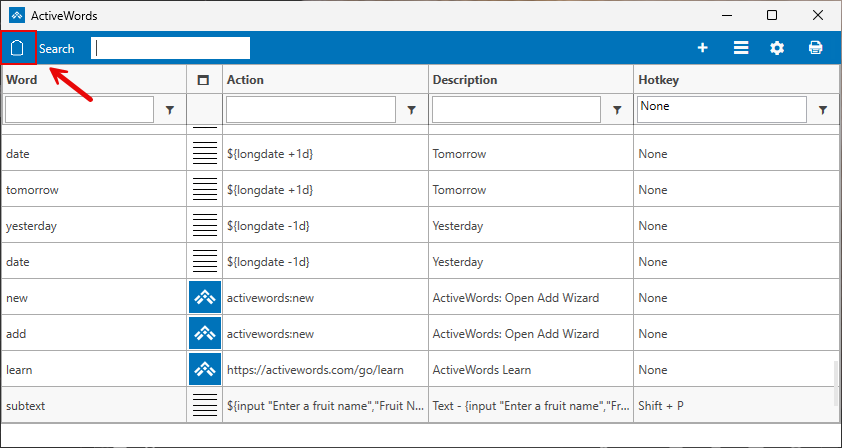
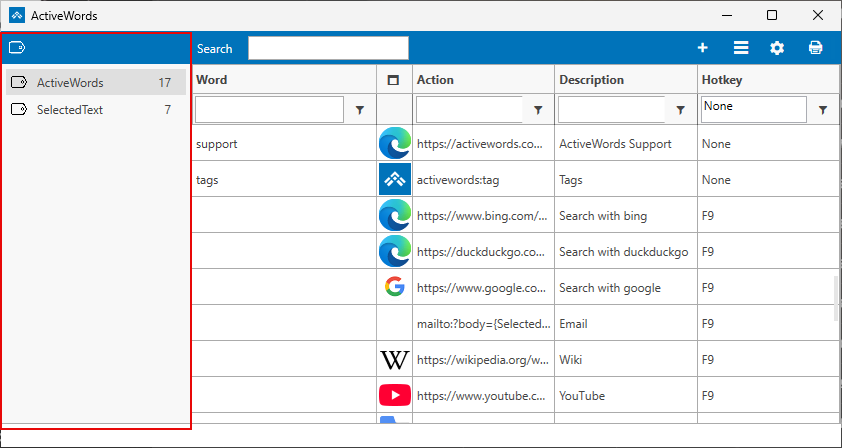
Tags help you organize, filter, and quickly find your Words and Actions. In ActiveWords 5, tags are accessed through a tag icon in the main window instead of a side column.
Where to Find Tags (Version 5)
Click the tag icon in the main window to open the tags view. The icon shows your tags and lets you work with them in one place. When the tags view is closed, all Actions are displayed in the main list.
What You Can Do with Tags
- View and filter – Select a tag to see only the Actions associated with that tag in the list.
- Create tags – Right-click selected Actions in the list and choose "Tag" from the context menu, or assign a tag when adding or editing an Action.
- Rename and delete tags – Right-click a tag to rename or delete it as needed.
- Group and organize – Use tags to group related Actions (e.g., by project, client, or topic) so you can find and trigger them quickly.
Importing and Tags
When you import a file (e.g., a Shared ActiveWords file or Addin), ActiveWords can present a list of the imported Actions and let you assign or apply tags to them. This makes it easy to keep imported content organized and to filter it later.
Triggering a Tag
Tags can be triggered like Words. Trigger a tag with a double space or the ActiveWords Key to see a list of all Actions associated with that tag, then choose one to run. You can associate an Action with multiple tags.
Addins and Shared ActiveWords
ActiveWords Addins and Shared ActiveWords files often assign a tag to each included Action so you can easily find, reference, and edit them. When exporting or sharing, grouping Actions under one tag can simplify creating and managing the shared file.
Related FAQs
- List View – Create and edit actions
- Shared ActiveWords – Export and share Words and Actions
- ActiveWords Sync – Sync data across devices
ActiveWords 5 introduces important changes to how data is stored and managed. These changes are foundational and affect how ActiveWords behaves across versions.
This article explains what has changed, why it changed, and what it means for you when testing ActiveWords 5.
What Changed in ActiveWords 5
In previous versions, ActiveWords used a version-specific folder structure and database format.
ActiveWords 5 moves away from that approach by:
- Using a single ActiveWords folder
- Introducing a new internal database structure
- Separating ActiveWords 5 data from earlier versions
These changes are part of a broader effort to modernize the platform.
Why the Folder Structure Was Updated
The updated folder structure simplifies how ActiveWords manages data internally and prepares the product for future versions.
Key benefits include:
- Cleaner organization with fewer version-specific folders
- Easier long-term maintenance
- A more flexible foundation for new features
While most users will not interact directly with these folders, the change affects how data is handled behind the scenes.
Database Changes and Compatibility
ActiveWords 5 uses a new database format that is not compatible with ActiveWords 4.
This means:
- Actions created or edited in ActiveWords 5 cannot be used in ActiveWords 4
- Switching back to ActiveWords 4 does not carry over V5-specific changes
This one-way behavior is intentional and supports ongoing development.
Important: ActiveWords 5 uses a new database structure. Actions that are created or edited in ActiveWords 5 cannot be used in ActiveWords 4, and if you return to ActiveWords 4, any changes made in ActiveWords 5 will not appear. This behavior is expected during the alpha phase and supports future development.
What This Means for Testing ActiveWords 5
Because of these changes, ActiveWords 5 should be treated as a testing environment.
If you plan to switch back to ActiveWords 4:
- Avoid making large structural changes in V5
- Use V5 primarily to explore new features
- Expect your V4 setup to remain unchanged when you return
This approach allows you to test safely without disrupting existing workflows.
Can You Move Data Between Versions?
There is currently no supported way to migrate actions created in ActiveWords 5 back to ActiveWords 4.
This limitation is by design and will remain in place while ActiveWords 5 is in alpha.
Who Should Pay Special Attention to This
These changes are especially important for:
- Power users with extensive action libraries
- Users testing ActiveWords 5 alongside production workflows
- Anyone frequently switching between versions
Understanding these differences helps avoid confusion and unexpected behavior.
What to Read Next
To learn more about how these changes affect installation and daily use, see:
ActiveWords 5 is a major evolution of ActiveWords, focused on expanding how you launch actions, work with selected text, and interact with your computer using the keyboard.
This version introduces significant architectural and feature changes and is currently available as an alpha for testing and early feedback.
This article gives a high-level overview of what’s new and what to expect.
ActiveWords 5 Is an Alpha Release
ActiveWords 5 is an early, in-progress version intended for evaluation and testing.
That means:
- Features may change as development continues
- Documentation is still being expanded
- Some behavior may differ from ActiveWords 4
If you rely on ActiveWords daily for production workflows, you should review the installation and data behavior carefully before switching.
A Reimagined Action Pad
The Action Pad has been significantly expanded.
In ActiveWords 5, the Action Pad can:
- Launch ActiveWords actions
- Search for applications, files, and folders on your computer
- Perform calculations and date-based expressions
- Act on selected text when relevant
The Action Pad is now designed as a central, keyboard-driven entry point for many tasks, not just a shortcut launcher.
Selected Text (Previously ActionText)
What was previously called ActionText is now called Selected Text.
Along with the name change:
- Selected Text actions are more visible and flexible
- You can trigger actions based on highlighted text
- Selected Text actions can be accessed through the Action Pad
- Hotkeys can be assigned to Selected Text actions
Existing users should be aware of the terminology change when looking for documentation.
Improved Hotkey Management
Hotkeys in ActiveWords 5 are more centralized and flexible.
You can now:
- Assign hotkeys directly while editing an action
- Use the same hotkey for multiple actions and choose from a list
- Action Pad hotkeys are managed on the Action Pad tab, while action hotkeys are edited within each action.
This makes it easier to customize keyboard workflows without conflicts.
New and Enhanced Capabilities
ActiveWords 5 also introduces several new or expanded features, including:
- Date calculations that work directly in the Action Pad and actions
- An advanced calculator for more complex numeric expressions
- A Large Type feature for displaying selected text clearly
- Optional audio feedback when text expansion completes
Some of these features will be documented in more detail in separate FAQs.
Important Structural Changes
Behind the scenes, ActiveWords 5 includes changes that affect how data is stored and managed.
Notably:
- The folder structure has been simplified
- The internal database format has changed
- Actions created in ActiveWords 5 are not compatible with ActiveWords 4
These changes are intentional and support future development, but they are important to understand before switching versions.
What to Read Next
If you’re getting started with ActiveWords 5, these FAQs are recommended next:
Windows Search lets the ActionPad search your computer for files, folders, applications, and Start Menu items. When enabled, typing in the ActionPad finds not only your Words but also items across your system.
Enabling Windows Search
Open Options and go to the ActionPad tab. Turn on Windows Search to include files, folders, applications, and Start Menu items in ActionPad search results. When Windows Search is off, the ActionPad searches only ActiveWords (and other enabled options such as Date Calculations and Advanced Calculator).
What Windows Search Finds
- Folders – Files and folders on your computer
- Applications – Installed programs, including both traditional desktop applications and packaged apps from the Microsoft Store
- Start Menu items – Programs and shortcuts in the Windows Start Menu
Packaged Apps vs. Traditional Applications
A packaged application is an app you download and install from the Microsoft Store (or one that came preinstalled with Windows from the Store). A traditional application is typically installed from the web or from an installer. Both types appear in ActionPad search results when Windows Search is enabled. For example, Notepad on Windows 11 is a packaged app; many other programs you install manually are traditional applications.
How Search Matches
You can control how search matches your typing:
- Starts with – Results must begin with the text you type (e.g., typing "calc" finds Calculator but not "Windows Calculator")
- Contains – Results can match anywhere in the name (e.g., typing "calc" finds Calculator, Calculator App, etc.)
Where to Search
You can limit where Windows Search looks:
- System – Search your entire computer
- Profile – Limit the search to files and folders under your user profile
Choosing Profile can speed up search if you only need results from your personal files and folders.
Related FAQs
- ActionPad – Overview and configuration
- Date Calculations – Date arithmetic in the ActionPad
- Advanced Calculator – Math in the ActionPad
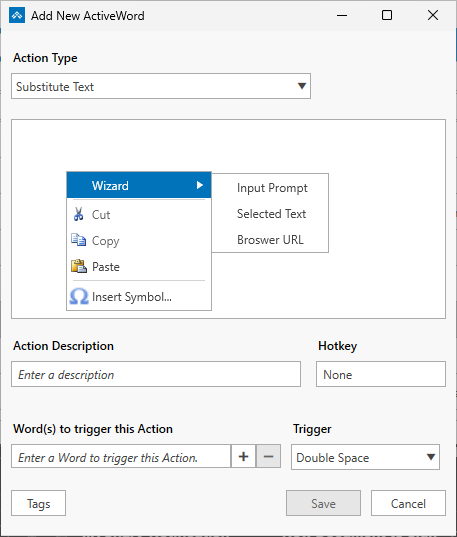
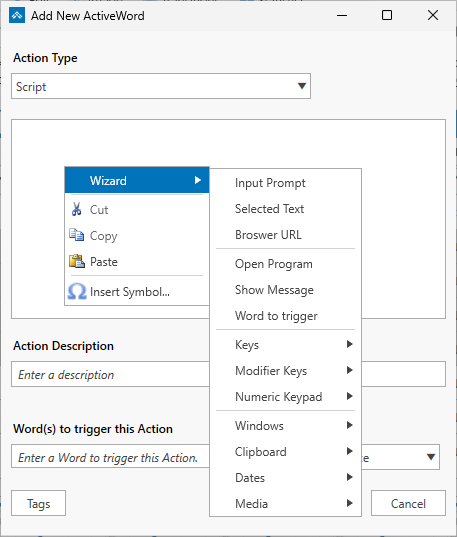
The Wizard is a right-click menu in the action editor that inserts common syntax for you, so you don't have to remember the commands. It appears when you create or edit Substitute Text, Substitute Content, Open URL, and other action types. What you see in the Wizard depends on the action type you're creating or editing. The Wizard is new in ActiveWords 5 and makes scripting features easier and more accessible.
Where to Find the Wizard
When creating a new action, right-click in the content or description field. The Wizard appears in the context menu. Choose an option and the corresponding syntax is inserted at the cursor position.
Wizard Options for Substitute Text and Other Actions
For Substitute Text, Substitute Content, Open URL, and similar action types (everything except Script), the Wizard offers three options:
- Input prompts – Inserts the syntax for a user input dialog. Use this when you need the person to type something that gets inserted into the action. For example, a letter heading that starts with "Dear [person's name]" and then the rest of the letter. You can use one or more input prompts in a single action.
- Selected text – Inserts the syntax for using the user's selected (highlighted) text. Use this when the action should include whatever text the user has selected. For example, appending selected text to the end of a URL for a search query. Works with Selected Text actions. You can also combine selected text with input prompts.
- Current browser URL – New in ActiveWords 5. Inserts the syntax for the URL of the page your browser is currently on. Use this when the action should include the current page address.
Wizard Options for Script Actions
Script is the main reason the Wizard exists—scripting is where you can do the most. For Script actions, the Wizard offers many options so you don't have to remember the syntax: open a program (e.g., Sublime Text), show a message, trigger another Word, copy or empty the clipboard, send key presses (including modified keys and media keys), insert long date (expanded when you trigger the action), and various other functions. One more category is still being added (managing windows, launching apps and waiting for them to be visible). The Script Wizard is still being expanded; options for Substitute Text and other action types are complete. For the full list of script commands and syntax, see Scripts and Syntax.
Example: Edit Action with Input Box
ActiveWords includes an "edit" action (triggered by activewords://edit) that opens a specific action for editing. Using the Wizard's input prompt, you can create a Word that asks which Word you want to edit, then launches the edit action with that Word. The input box lets you type the Word name, and the action opens the corresponding editor.
Why the Wizard Exists
Many users avoided scripting because they had to remember the syntax. The Wizard makes these features easier to use. You choose from the menu and the correct syntax is inserted. Script is the primary focus: you can build automated sequences (e.g., open an app, wait for it, send keys to navigate, then combine with an input prompt for text). For advanced scripting, the Wizard complements the full Scripts and Syntax documentation.
Related FAQs
- Selected Text – Use highlighted or pasted text in actions
- Scripts and Syntax – Full scripting reference and command list
- Script Examples – Copy-paste script examples and downloads
- List View – Create and edit actions