The Wizard is a right-click menu in the action editor that inserts common syntax for you, so you don't have to remember the commands. It appears when you create or edit Substitute Text, Substitute Content, Open URL, Script, and other action types. What you see in the Wizard depends on the action type you're creating or editing. The Wizard is new in ActiveWords 5 and makes scripting features easier and more accessible.
Why the Wizard Exists
Many users avoided scripting because they had to remember the syntax. The Wizard makes these features easier to use: you choose from the menu and the correct syntax is inserted. Script is the primary focus: you can build automated sequences (for example, open an app, wait for it, send keys to navigate, then combine with an input prompt for text). For advanced scripting, the Wizard complements the full Scripts and Syntax documentation.
Where to Find the Wizard
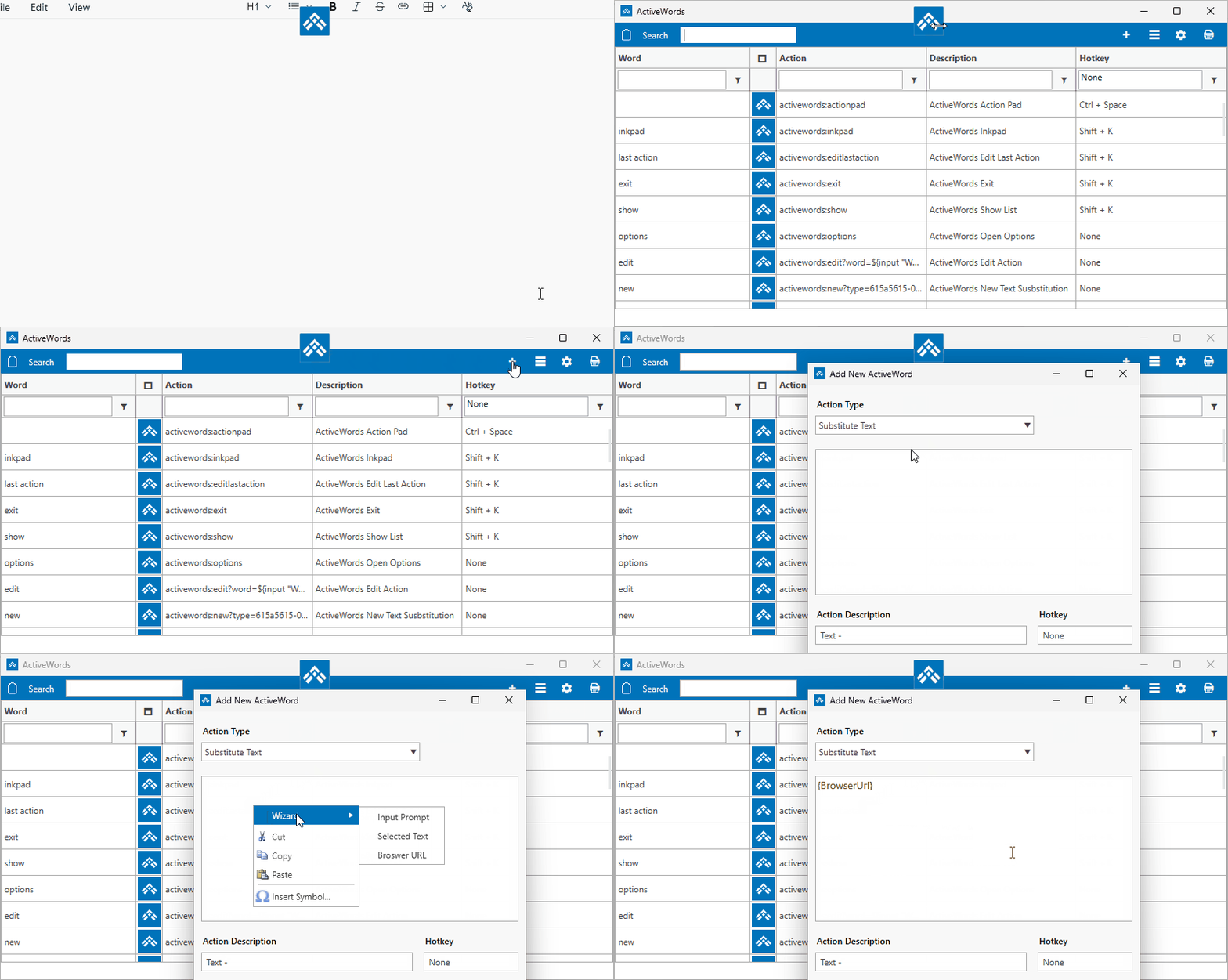
When editing an action, right-click in the content or description field. The Wizard appears in the context menu. Choose an option and the corresponding syntax is inserted at the cursor position.
Wizard Options for Substitute Text and Other Actions
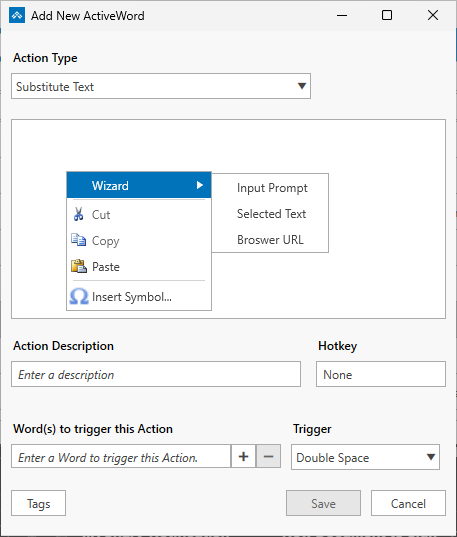
For Substitute Text, Substitute Content, Open URL, and similar action types, the Wizard offers three options. Script actions have a different, larger set of Wizard options (see below).
- Input prompts – Inserts the syntax for a user input dialog. Use this when you need the person to type something that gets inserted into the action—for example, a letter heading that starts with "Dear [person's name]" and then the rest of the letter. You can use one or more input prompts in a single action.
- Selected text – Inserts the syntax for using the user's selected (highlighted) text. Use this when the action should include whatever text the user has selected—for example, appending selected text to the end of a URL for a search query. Works with Selected Text actions. You can also combine selected text with input prompts.
- Current browser URL – New in ActiveWords 5. Inserts the syntax for the URL of the page your browser is currently on. Use this when the action should include the current page address.
Wizard Options for Script Actions
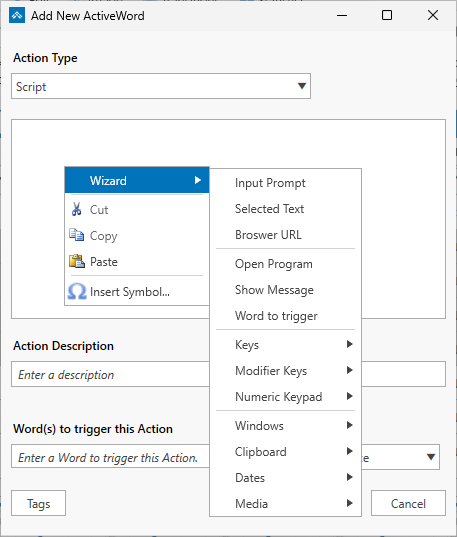
Script is the main reason the Wizard exists; scripting is where you can do the most. For Script actions, the Wizard offers many options so you don't have to remember the syntax: open a program (for example, a text editor), show a message, trigger another Word, copy or empty the clipboard, send key presses (including modified keys and media keys), insert long date (expanded when you trigger the action), and various other functions. One more category is still being added (managing windows, launching apps and waiting for them to be visible). The Script Wizard is still being expanded; options for Substitute Text and other action types are complete. For the full list of script commands and syntax, see Scripts and Syntax.
Example: Script with Input Box
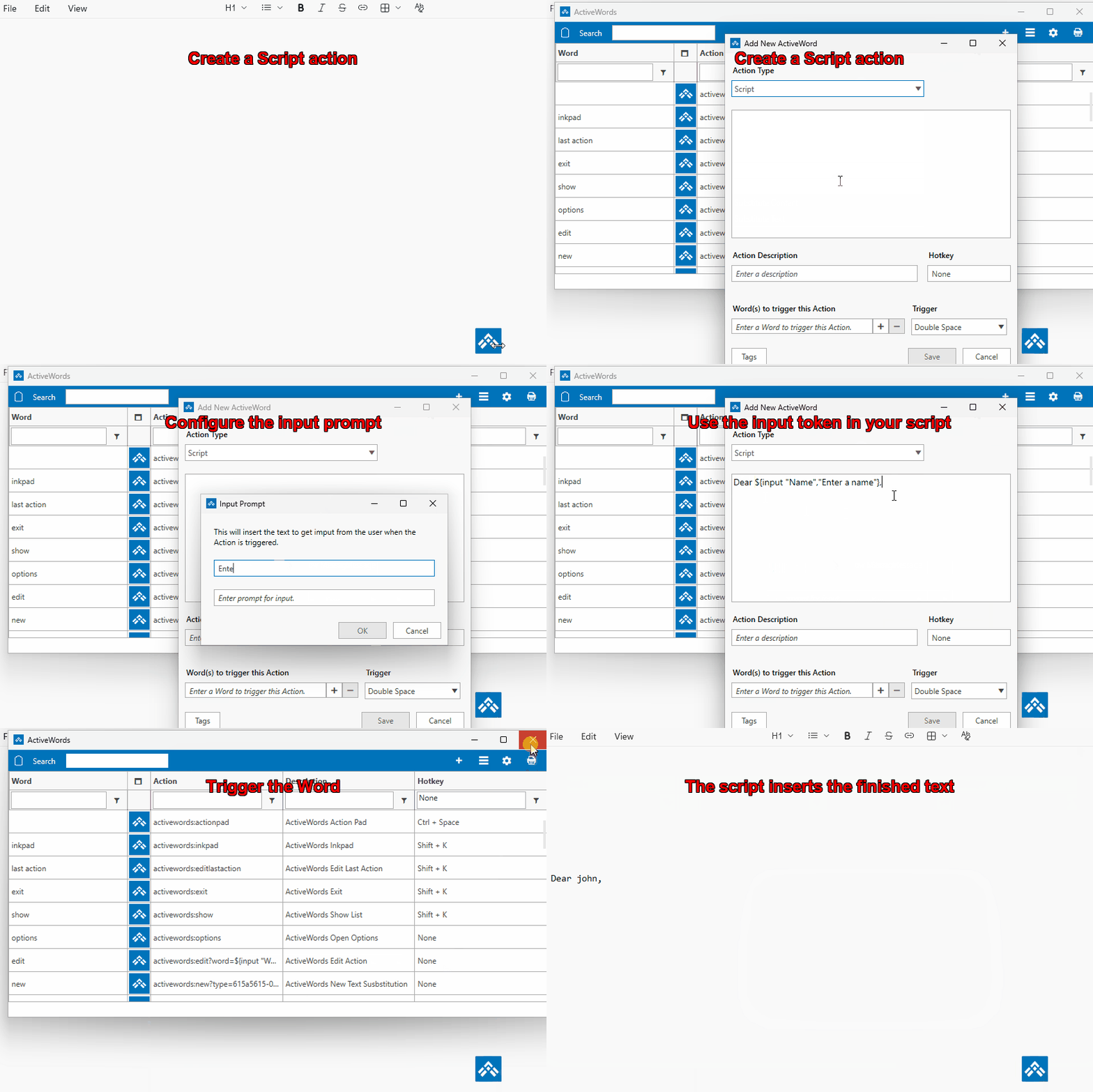
One common use of the Script Wizard is to insert an input box into a script so the action can personalize text. For example, you might create a script that starts with Dear ${input(\"Name\")}, and then the rest of your letter. Using the Wizard in a Script action, you insert an Input box token, save the action as a Word, then trigger that Word from within Notepad. When you trigger it, ActiveWords shows the input dialog, you type the name, and the script inserts the finished text into Notepad.
Related FAQs
- Selected Text – Use highlighted or pasted text in actions
- Scripts and Syntax – Full scripting reference and command list
- Script Examples – Copy-paste script examples and downloads
- List View – Create and edit actions