The Advanced Calculator lets you perform math calculations directly in the ActionPad. Type a numeric expression and press Enter—the result is substituted immediately. This is useful for quick calculations without leaving your workflow. It supports basic arithmetic plus many advanced functions, constants, and operators; the full scope is too large to document here.
Enabling the Advanced Calculator
Open Options and go to the ActionPad tab. Turn on Advanced Calculator to use math expressions in the ActionPad. When enabled, expressions such as 25*4 or 100/3 are evaluated and the result is inserted.
Using the Advanced Calculator
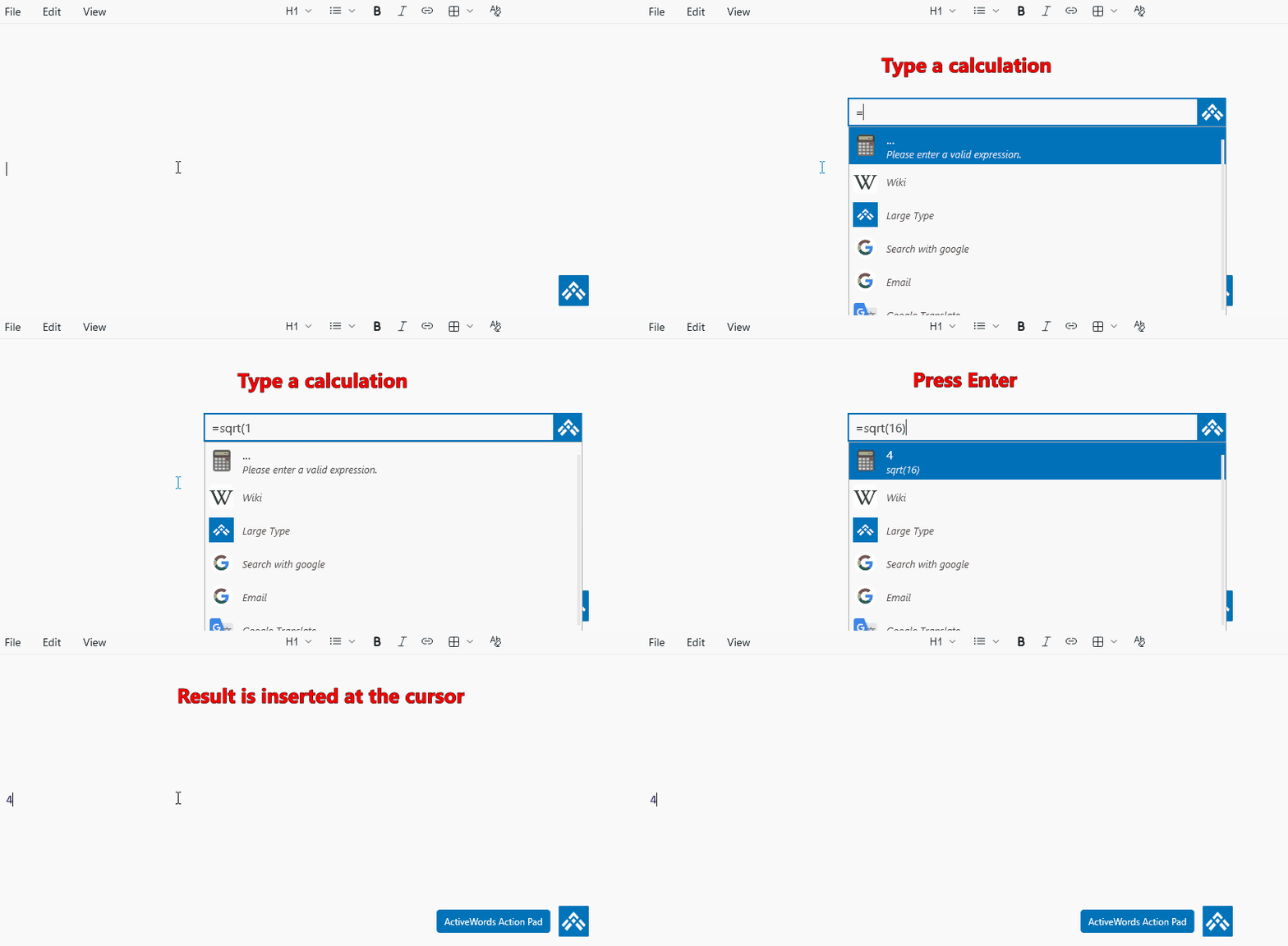
Open the ActionPad (default: Ctrl+Space), type a math expression, and press Enter. The result is delivered in the context where you were working—for example, into a document, email, or Notepad. Expressions that start with a number (e.g. 1+2, 25*4) are evaluated automatically. If your expression starts with a function or constant (e.g. sqrt, sin, pi), type = first so the calculator recognizes it. For example, =sqrt(16) or =sin(pi/2). Examples:
1+2→ 31+2/3+(4*5-10)→ mixed arithmetic2*pior=sqrt(16)→ constants and functions=sin(pi/2)→ 1=sum(n, 1, 100, 1/n^2)→ summation (e.g. sum of 1/n² from n=1 to 100)=int(sqrt(1-x^2), x, -1, 1)→ definite integral (π/2)
Note: When you press Enter, the calculated result is inserted directly into the application where your cursor is currently located (for example, in Notepad, a document, or an email).
See it in action
Related FAQs
- ActionPad – Overview and configuration
- Date Calculations – Date arithmetic in the ActionPad
- Windows Search – Search files, folders, and applications