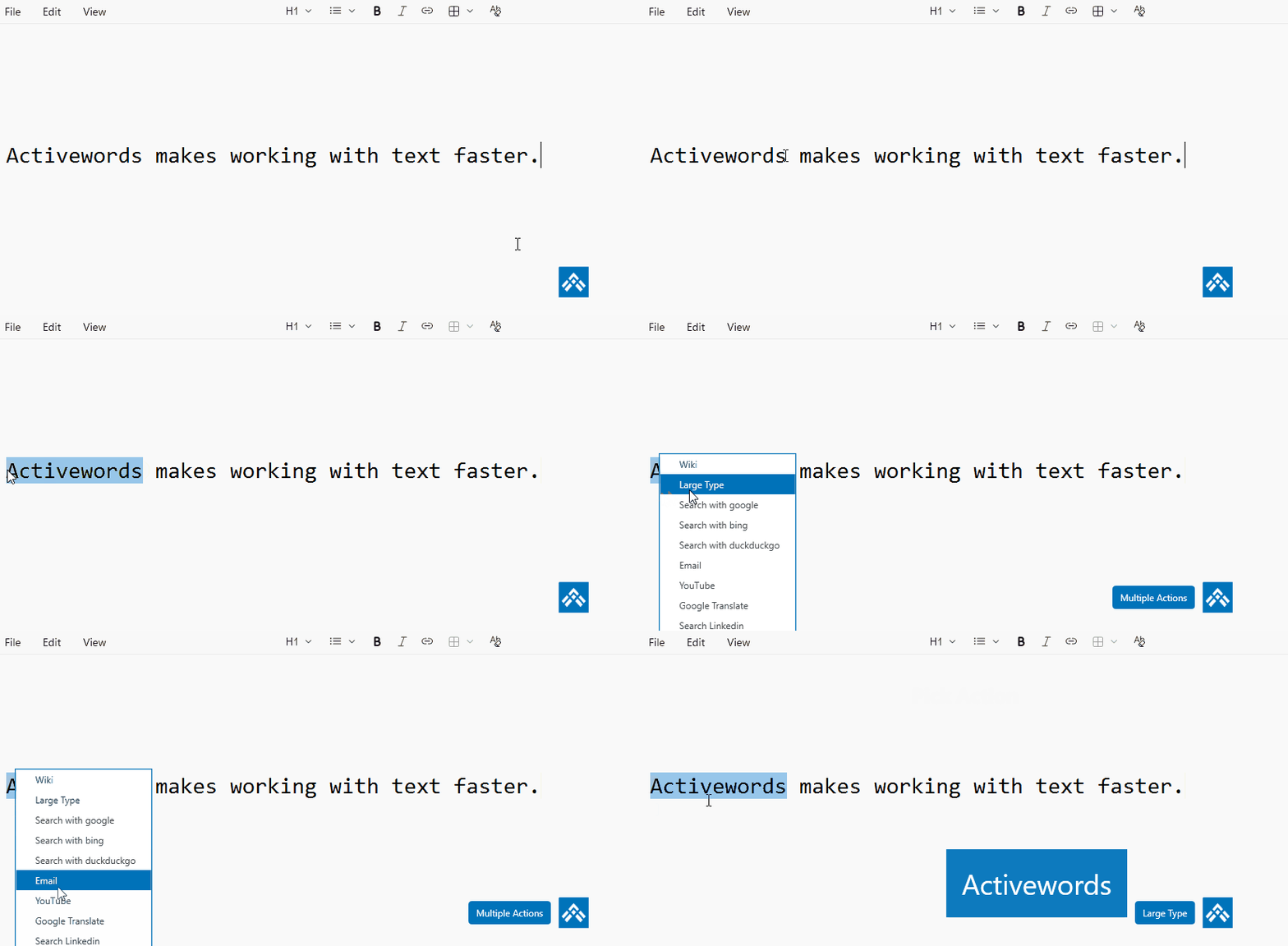
Selected Text (formerly called ActionText in Version 4) acts on any text you select anywhere on your computer and on any text entered in the ActionPad. Selected Text serves as your entry point for services and information, providing instant access to searches, translations, and custom actions—much like the Windows Key, only more powerful.
How to Use Selected Text
- Select any text from any application (web browser, document, email, etc.)
- Press F9 (the default hotkey for Selected Text actions)
- Choose from the menu of available actions, or if you only have one Selected Text action, it will execute immediately
Built-in Selected Text Actions
Your default ActiveWords 5 installation includes several Selected Text actions:
- Bing Search - Search selected text on Bing
- DuckDuckGo Search - Search selected text on DuckDuckGo
- Google Search - Search selected text on Google
- Email - Create a new email using the selected text
- Wikipedia - Look up the selected text on Wikipedia
- YouTube - Search for videos related to the selected text on YouTube
- Google Translate - Translate selected text
- LinkedIn Search - Search for selected text on LinkedIn
- Large Type - Display selected text in a large, easy-to-read format (great for presentations or when you need text to be highly visible)
You can delete or add Selected Text actions to meet your needs. If you only have one Selected Text resource, the action will execute instantly without showing a menu.
Customizing the Hotkey
While F9 is the default hotkey for Selected Text actions, you can customize hotkeys for any action:
- Open the List View in ActiveWords
- Find the action you want to customize
- Right-click on the action and set your preferred hotkey in the popup
- You can even assign the same hotkey to multiple actions—ActiveWords will show a Pick List to choose from
Creating Your Own Selected Text Actions
You can create custom Selected Text actions to work with the text you have highlighted or entered through the Action Pad. These actions use the {SelectedText} command to insert that text into the action when it runs.
How {SelectedText} Works
The {SelectedText} command represents any text you are acting on. When an action runs, it uses either highlighted text or text provided through the Action Pad, depending on context.
This allows the same action to work in multiple situations without modification.
Example: Creating a Wikipedia Search Action
To create a Wikipedia search action:
- Action Type: Open URL
- URL:
https://en.wikipedia.org/wiki/Special:Search?search={SelectedText} - Assign a hotkey or use the default F9 hotkey.
When you run this action, the selected text is passed directly into Wikipedia's search.
Using {SelectedText} in Multiple Actions
The {SelectedText} command can be used in any lookup-style action, such as web searches, translations, or other external tools.
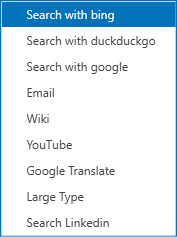
When multiple actions use the same hotkey, ActiveWords displays a Pick List. This lets you choose where to send the selected text, for example to Wikipedia, Bing, or another lookup source.
Beyond Simple Searches
Selected Text actions are not limited to public search engines. They can also be configured to interact with enterprise databases, internal tools, or custom web services, making them a powerful way to connect ActiveWords with your existing systems.
Using Selected Text with ActionPad
Selected Text also works with the ActionPad. In V5, Selected Text options appear within the ActionPad search results. For example, if you type or search for a term in the ActionPad, the system can present Selected Text actions (like Google Translate) as clickable options.
Workflow:
- Open the ActionPad (default: Ctrl+Space)
- Type or paste any text you want to act on
- Press Enter
- Select the information source or action you want from the results (which may include ActiveWords, folders, applications, and Selected Text actions)
- The action executes instantly with your text
Multiple Actions and Pick Lists
If you have multiple Selected Text actions assigned to the same hotkey (like F9), ActiveWords will display a Pick List showing all available options. Simply select the action you want to use.
Tips
- If you only have one Selected Text action, it will execute immediately without showing a menu
- Selected Text actions can access enterprise databases and custom web services
- You can use the
{SelectedText}command in any action type that supports text substitution - If the text you select is a known ActiveWord, the associated action for that Word will be carried out instead