Support and Learn
This page covers virtually all support issues for the latest version of ActiveWords and access to free email support.
Please take some time and first look in our FAQs below.
If you can't find what you are looking for you can create a new ticket or view my open tickets
For help with ActiveWords 4 click here.
Search All Topics
Most Viewed
ActiveWords Sync keeps your Words, Actions, and Tags available across your Windows devices by storing your ActiveWords data in a cloud-synced folder.
Note: You must have an account and the cloud service software installed on each computer where you want your Words and Actions to sync. Download links are listed below.
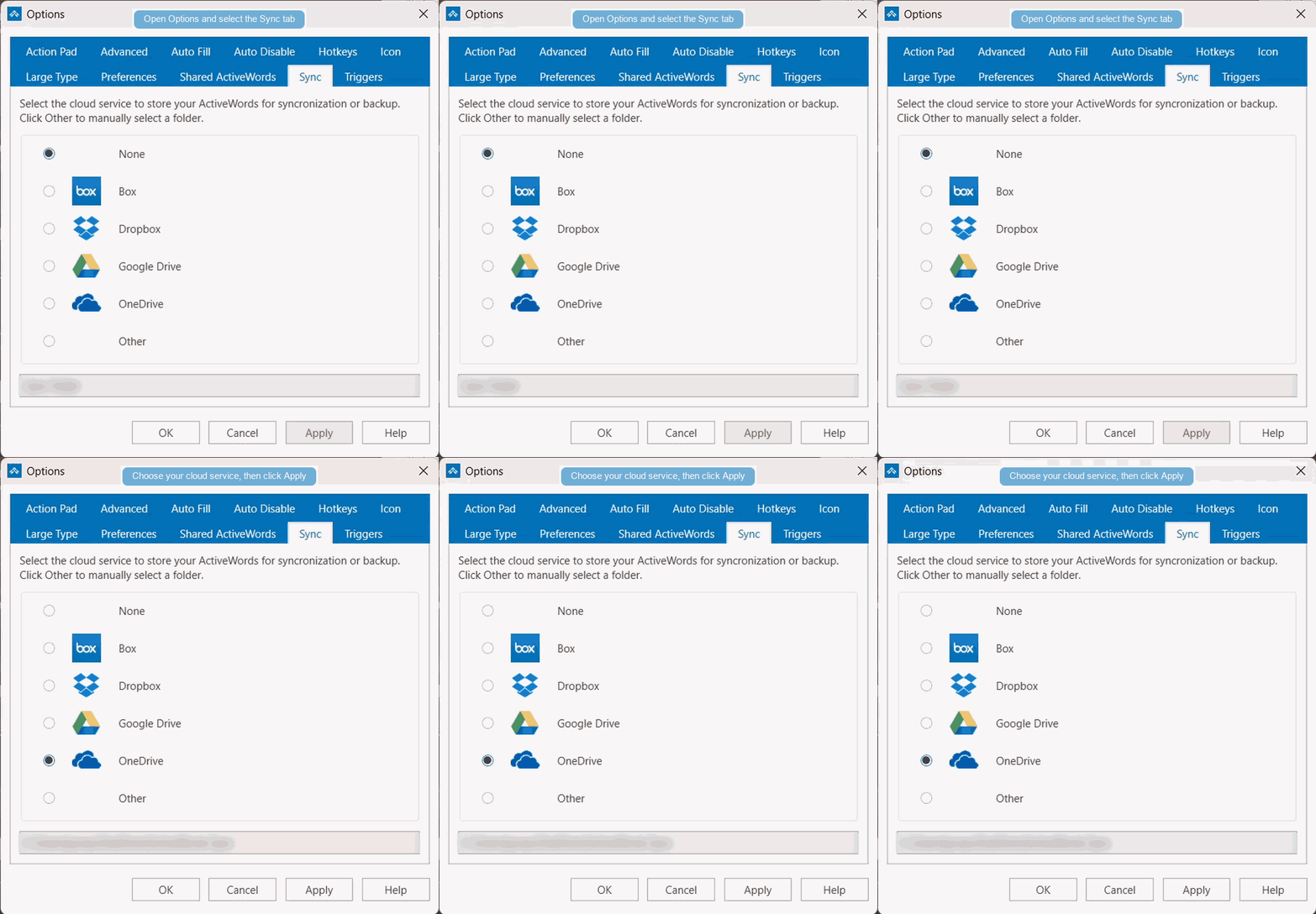
Set Up Sync on Each ActiveWords Installation
- Install and sign in to your cloud service on each Windows device you want to sync.
- Right-click the ActiveWords floating icon or system tray icon and open Options.
- Select the Sync tab.
- Choose the cloud service you want to use.
- If your cloud service is not listed, or if you use a custom cloud folder location, choose Other and browse to the top-level local folder for that service.
- Click Apply.
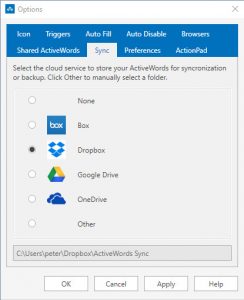
When you click Apply, ActiveWords creates a folder named ActiveWords Sync inside the cloud service folder you selected.
Note: Do not rename or modify the contents of the ActiveWords Sync folder. Setting Sync to None removes the sync data file for that ActiveWords installation.
Supported Cloud Services
Sync should work with any cloud service that creates a local sync folder available through Windows Explorer. ActiveWords Sync is commonly used with services such as Dropbox, OneDrive, Box, and Google Drive.
OneDrive users may need to make the ActiveWords Sync folder available locally, depending on how OneDrive is configured.
How Sync Updates Your Data
Your ActiveWords data in the cloud updates automatically as you make changes. Changes are noted when you import, add, edit, or delete Words, Actions, and Tags.
When you move to another internet-connected device, the availability of recent changes depends on two things:
- How much time the previous device had to update the cloud folder.
- How quickly the cloud service updates the local folder on the next device.
Sync Requirements
- The cloud service must be installed and running on each device before enabling ActiveWords Sync.
- Each device must use the same cloud service account.
- The local top-level cloud folder may be in a different location on each device.
- ActiveWords Sync requires a functioning internet connection.
- The ActiveWords Sync folder must be available locally, not cloud-only.
Additional Notes
- Enabling ActiveWords Sync keeps the latest version of your ActiveWords database backed up in the cloud, even if you only use one device.
- OneDrive and some other cloud services may require you to manually mark specific folders as available offline. The ActiveWords Sync folder must maintain its content locally.
- Sync requires each database to contain a unique Windows
machine_guid. This identifies a specific Windows installation. - Sync may not work correctly if more than one computer has the same
machine_guid. This can happen when Windows installations are cloned.
Cloud Service Download Links
Related FAQs
All Topics
ActiveWords Sync keeps your Words, Actions, and Tags available across your Windows devices by storing your ActiveWords data in a cloud-synced folder.
Note: You must have an account and the cloud service software installed on each computer where you want your Words and Actions to sync. Download links are listed below.
Set Up Sync on Each ActiveWords Installation
- Install and sign in to your cloud service on each Windows device you want to sync.
- Right-click the ActiveWords floating icon or system tray icon and open Options.
- Select the Sync tab.
- Choose the cloud service you want to use.
- If your cloud service is not listed, or if you use a custom cloud folder location, choose Other and browse to the top-level local folder for that service.
- Click Apply.
When you click Apply, ActiveWords creates a folder named ActiveWords Sync inside the cloud service folder you selected.
Note: Do not rename or modify the contents of the ActiveWords Sync folder. Setting Sync to None removes the sync data file for that ActiveWords installation.
Supported Cloud Services
Sync should work with any cloud service that creates a local sync folder available through Windows Explorer. ActiveWords Sync is commonly used with services such as Dropbox, OneDrive, Box, and Google Drive.
OneDrive users may need to make the ActiveWords Sync folder available locally, depending on how OneDrive is configured.
How Sync Updates Your Data
Your ActiveWords data in the cloud updates automatically as you make changes. Changes are noted when you import, add, edit, or delete Words, Actions, and Tags.
When you move to another internet-connected device, the availability of recent changes depends on two things:
- How much time the previous device had to update the cloud folder.
- How quickly the cloud service updates the local folder on the next device.
Sync Requirements
- The cloud service must be installed and running on each device before enabling ActiveWords Sync.
- Each device must use the same cloud service account.
- The local top-level cloud folder may be in a different location on each device.
- ActiveWords Sync requires a functioning internet connection.
- The ActiveWords Sync folder must be available locally, not cloud-only.
Additional Notes
- Enabling ActiveWords Sync keeps the latest version of your ActiveWords database backed up in the cloud, even if you only use one device.
- OneDrive and some other cloud services may require you to manually mark specific folders as available offline. The ActiveWords Sync folder must maintain its content locally.
- Sync requires each database to contain a unique Windows
machine_guid. This identifies a specific Windows installation. - Sync may not work correctly if more than one computer has the same
machine_guid. This can happen when Windows installations are cloned.