Triggers tell ActiveWords when to carry out the Action associated with a Word. A Trigger can be something simple, such as two spaces after a Word, or something more specific, such as a period, a number, or another custom pattern.
Most people can use the standard Trigger choices. Custom Triggers are available when you want more control over exactly what finishes a Word and whether the typed trigger should remain in the result.
Standard Trigger Choices
- Any Delimiter: Trigger the Word when it is followed by a delimiter such as a space, comma, period, or other delimiter.
- Double Space: Trigger the Word when it is followed by two spaces.
- None: Trigger only from the ActionPad or with the ActiveWords Key.
Note: At ActiveWords, a delimiter is a sequence of one or more characters or keys that triggers the Word and its associated Action.
When To Use Each Standard Trigger
Any Delimiter is useful for corrections and short abbreviations that should expand as soon as you type normal punctuation or spacing. For example, the misspelling beleive can become believe, and k can become contract.
For Substitute Text Actions, the triggering delimiter is included in the output. For example, typing Your new k is effective June 01, 2019 can produce Your new contract is effective June 01, 2019, preserving the space after the k when it expands to become contract.
Double Space is useful for full words and phrases that may also appear as normal text. For example, my name is a phrase you might type in ordinary writing, so a single space would expand it by accident. With Double Space, it expands to your full formal name only when you deliberately type two spaces.
None is useful when you want a Word to run only when you explicitly choose it from ActionPad or press the ActiveWords Key (the default option being F8). This prevents a Word from expanding during normal typing.
Other Ways To Trigger Words
You can also trigger Words using the ActiveWords Key, which is F8 by default, or in the ActionPad by using the Enter key. These triggers are independent of Any Delimiter, Double Space, and None, and apply to all Word/Action associations.
Note: Substitute Text Actions triggered with the ActiveWords Key or from ActionPad do not include a trailing delimiter. Text substitutions created as Script Actions also do not include a trailing delimiter when triggered.
Custom Triggers
Custom Triggers let you add Trigger choices beyond Any Delimiter, Double Space, and None. They are useful when you want a specific key, character, or pattern to trigger a Word.
Find Custom Triggers In Options
- Right click on the ActiveWords floating Monitor icon, or the ActiveWords icon in the system tray.
- Open the ActiveWords Options dialog.
- Select the Triggers tab.
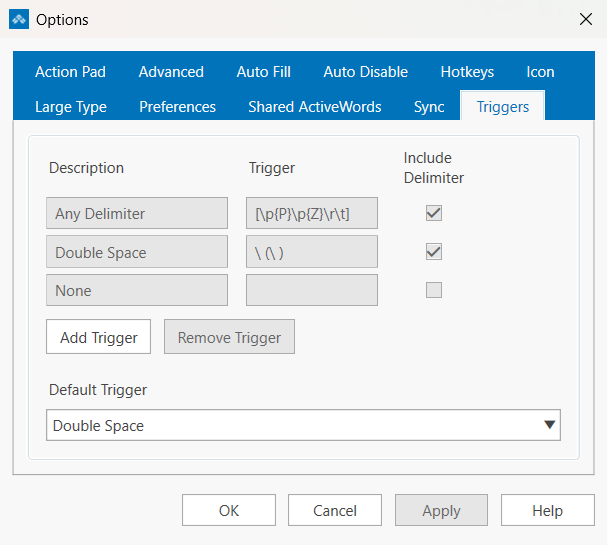
The Triggers tab lists the built-in triggers and any custom triggers you have added.
Creating Your Own Trigger
A custom trigger definition can be a single typed character, a set of characters, or a regular expression pattern. Simple triggers are straightforward. More complex patterns use regular expression syntax, so you may need some regex familiarity before creating them.
Note: Triggers built from regular expressions are an advanced option. You can find more information about regex, and test your own patterns, at regex101.com.
- Single-character triggers: A trigger such as
\.can make a Word run when you type a period after it. The backslash is required because Trigger patterns use regex, where an unescaped.matches any character. - Character-sequence triggers: A trigger such as
zxfires only when you type the full sequence,zfollowed byx. - Character-set triggers: Put the characters in square brackets to make any one of them a trigger.
[zx]fires on eitherzorx. Any characters can go inside the brackets, including a space or$. - Number triggers: The trigger
\dmakes any numeric key a trigger in any language. - Backslash triggers: To make backslash a trigger, use a double backslash:
\\.
To add one, click Add Trigger on the Triggers tab, then enter a description and the trigger pattern. ActiveWords validates the pattern as you type, and you cannot save an invalid pattern.
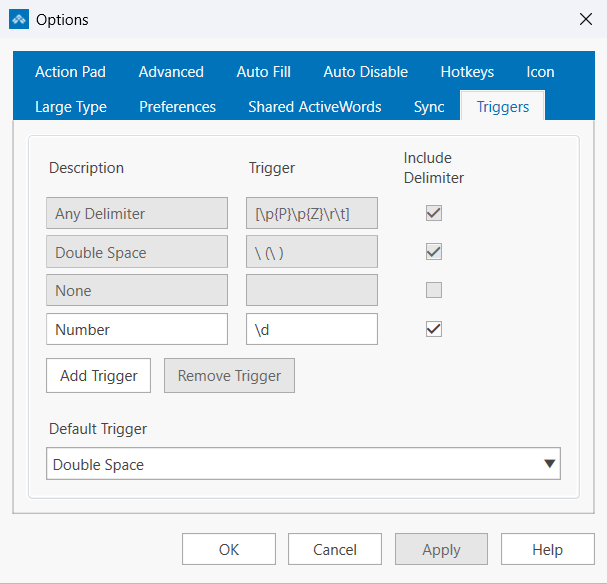
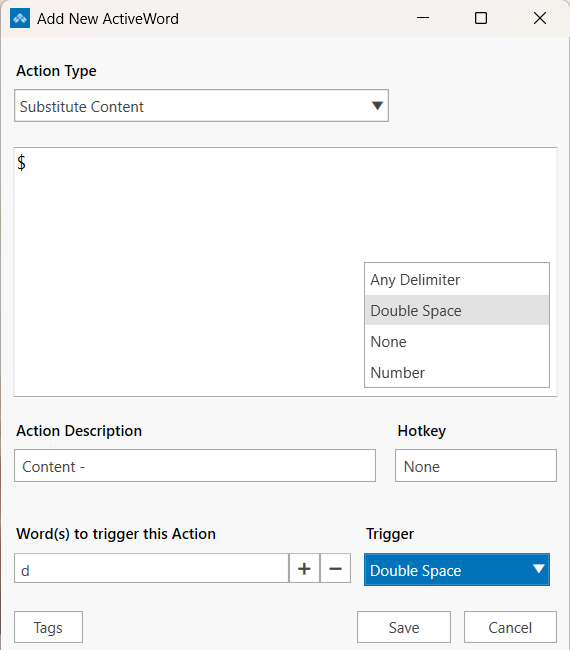
\d makes any numeric key a trigger.Once defined, custom triggers appear in the Trigger menu when you add or edit a Word.
Custom Triggers can also use some regular expression patterns. ActiveWords follows ICU regular expression syntax. For the full specification, see the ICU regular expression guide and the Unicode category reference.
Include Or Exclude The Trigger
When you define a custom trigger, you can choose whether to include the typed trigger in the result of a Substitute Text Action. New custom triggers start with Include checked.
- Check Include if the trigger should remain in the inserted text.
- Leave Include unchecked if the trigger is only a signal to run the Word.
- All other Action types exclude the trigger.
Examples
- Simple abbreviation: Use Any Delimiter for a Word such as addr that inserts an address when followed by a space or punctuation.
- Sentence-ending substitution: Use a period custom trigger when the punctuation itself should finish the Word.
- Numeric or currency-style entries: Use a number-based custom trigger when the typed value determines what should happen next. For example, a Word
dthat substitutes a dollar sign and includes the trigger turnsd6into$6as you type. The free currency Addin uses this pattern with five ready-made currency Words. - Different outputs from the same Word: You can associate the same Word with more than one Action when different triggers should produce different results.
Default Trigger For New Words
ActiveWords can use a default Trigger when you create new Words. Set the default in the Default Trigger menu on the Triggers tab in Options. New Word/Action associations start with that Trigger selected.
Changing Or Deleting Custom Triggers
To delete a custom Trigger, select it on the Triggers tab and click Remove Trigger. Any Words that used that Trigger are set to None. You do not need to find and change those Words first.