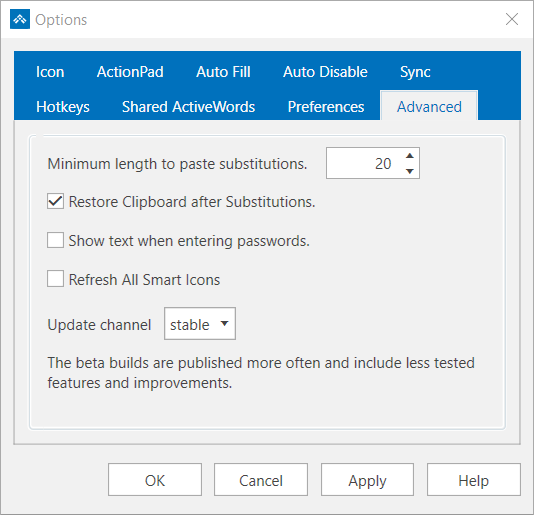
ActiveWords uses the Windows Clipboard for some substitution delivery. Understanding these settings can help if substitutions are replacing clipboard contents or if large substitutions behave unexpectedly.
When ActiveWords Uses the Clipboard
- Substitute Text Actions of 40 characters or more use the Windows Clipboard by default to speed delivery.
- Substitute Content Actions always use the Windows Clipboard, regardless of size.
Show Advanced Clipboard Options
- Open the ActiveWords Options dialog.
- Select the Preferences tab.
- Check Show advanced tools and options.
- Select the Advanced tab.
Clipboard Controls
- Minimum length to paste substitutions: Substitute Text Actions shorter than this character count are delivered by simulating keystrokes instead of using the Clipboard. Simulating keystrokes can be slower.
- Restore Clipboard after Substitutions: ActiveWords restores the clipboard contents that existed immediately before the Substitute Action was triggered.
Note: If Restore Clipboard after Substitutions is turned on, timing issues may occasionally cause prior clipboard contents to be substituted instead of the intended Action. Turn this option off if you want to avoid that risk.