Shared ActiveWords let an administrator distribute a common set of Words and Actions to people on a Windows network. Everyone can use the shared Actions from their normal ActiveWords interface, while the administrator maintains the source file in one place.
How Shared ActiveWords Work
A Shared ActiveWords file is an ActiveWords database file with the .awdb extension. When the file is assigned to a user, ActiveWords adds its Words and Actions to that user's data for normal use.
The shared records arrive under a Tag named after the shared file, which keeps them together and makes them easy to tell apart from the user’s own Words and Actions.
Users can trigger both personal and shared Actions from the same ActiveWords interface. They can change the Word that triggers a shared Action, but they cannot change the Action itself, and they cannot delete shared records. Those stay under the administrator’s control in the source file.
ActiveWords periodically checks the shared file for changes. When the administrator updates it, ActiveWords removes the previous shared data from each assigned user's data file and inserts the updated data.
Note: Use a path that resolves for every ActiveWords user on the network. ActiveWords 5 accepts both mapped-drive paths such as Z:\Folder\File.awdb and UNC paths such as \\SERVER\Folder\File.awdb. A shared file can also live in a synced cloud folder such as Dropbox or OneDrive, as long as that folder is shared with the other ActiveWords users.
Create the File You Want to Share
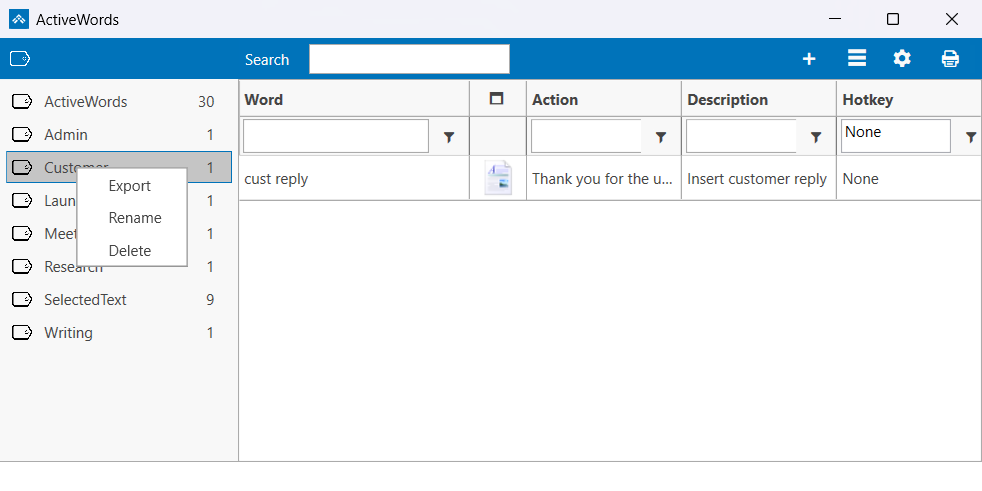
Create the shared Words and Actions in ActiveWords, organize them with a common Tag, then export that Tag as an ActiveWords database file.
- Create the Words and Actions you want to share.
- Give each Action a useful Description that identifies the shared set.
- Assign the same Tag to the Actions you want to export together.
- Right-click the Tag and select Export.
- Name the resulting
.awdbfile and save it in the network location your users will share.
The shared location must be accessible to every assigned user and support simultaneous access by the people running ActiveWords. The administrator who maintains the file must also have permission to replace or update it.
Load a Shared File from the Options Dialog
- Right-click the floating icon or system tray icon and select Options.
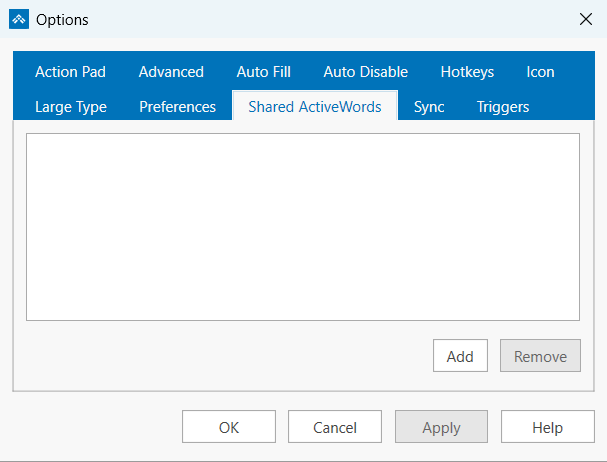
- Open the Shared ActiveWords tab.
- Click Add, then browse to and open the shared
.awdbfile. - Click Apply, then close Options.
The shared Words and Actions become available from the user's normal ActiveWords interface.
Load or Remove a Shared File with a URL
Administrators can also give users an ActiveWords URL that loads or removes a shared file:
- Add:
activewords:shared?file=[path to file] - Remove:
activewords:shared?remove=[path to file]
Load a Shared File from the Command Line
You can use the ActiveWords executable and the shared-file link in a Windows command file. For example:
C:\Program Files\ActiveWords 5\ActiveWords.exe "activewords:shared?silent=yes&file=Z:\Folder\File.awdb"
The silent=yes option suppresses the confirmation dialog. Create the command file in a plain text editor such as Notepad, save it with the .cmd extension, then distribute it with your normal network-management tools.
Edit a Shared File
To change the Words and Actions inside a shared file after you have distributed it, open the file as an external database. See Editing an External Database for the full procedure.
What Users Should Expect
- Multiple Shared ActiveWords files can be assigned to the same user.
- If a shared Action is identical to one in the user's personal data, both Actions appear.
- If the network is temporarily unavailable, the previously loaded Shared ActiveWords remain available.
- If the shared file or its path no longer exists, ActiveWords removes the assignment from the local installation.
- ActiveWords Sync ignores shared records inserted into the user's data file.