Hotkeys are system-wide key combinations that give you instant access to ActiveWords features. In ActiveWords 5, hotkey management is more flexible and organized. Hotkeys are configured in two primary places:
- In the main ActiveWords window (where you edit individual actions)
- In Options (Hotkeys tab and ActionPad tab)
Where to Configure Hotkeys
Hotkeys are configured either in Options or in the main ActiveWords window, depending on the type of hotkey.
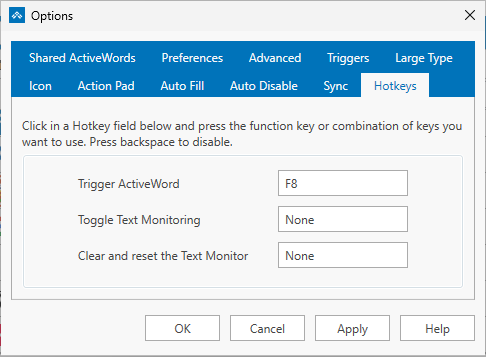
Options → Hotkeys tab – Use this tab for the three system hotkeys that do not relate to a specific action:
- ActiveWords Key (default: F8) – Press after typing a Word to trigger it, or use with selected text for Selected Text actions
- Text Monitoring – Turn text monitoring on or off
- Pause Word recognition – Pause until the next delimiter is entered
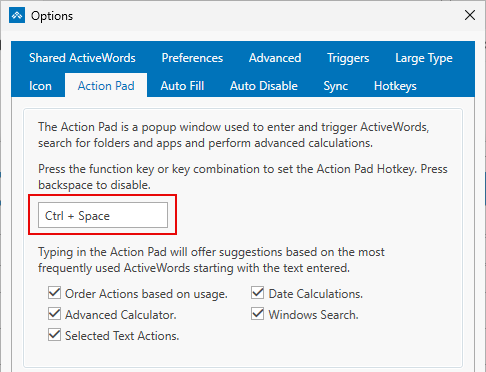
Options → ActionPad tab – Use this tab for the ActionPad hotkey (default: Ctrl+Space). In V5, the ActionPad hotkey is configured in one place only to avoid confusion.
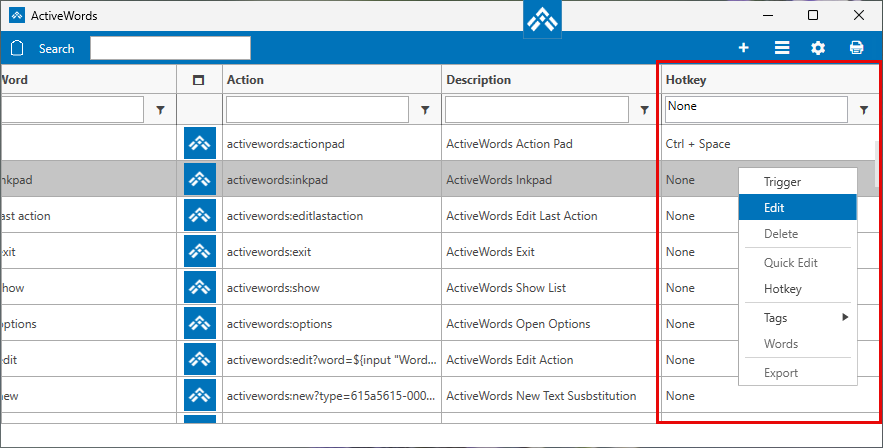
Main ActiveWords window – Assign hotkeys to individual actions here. Open the main ActiveWords window, right-click an action, and set your preferred hotkey in the action editor.
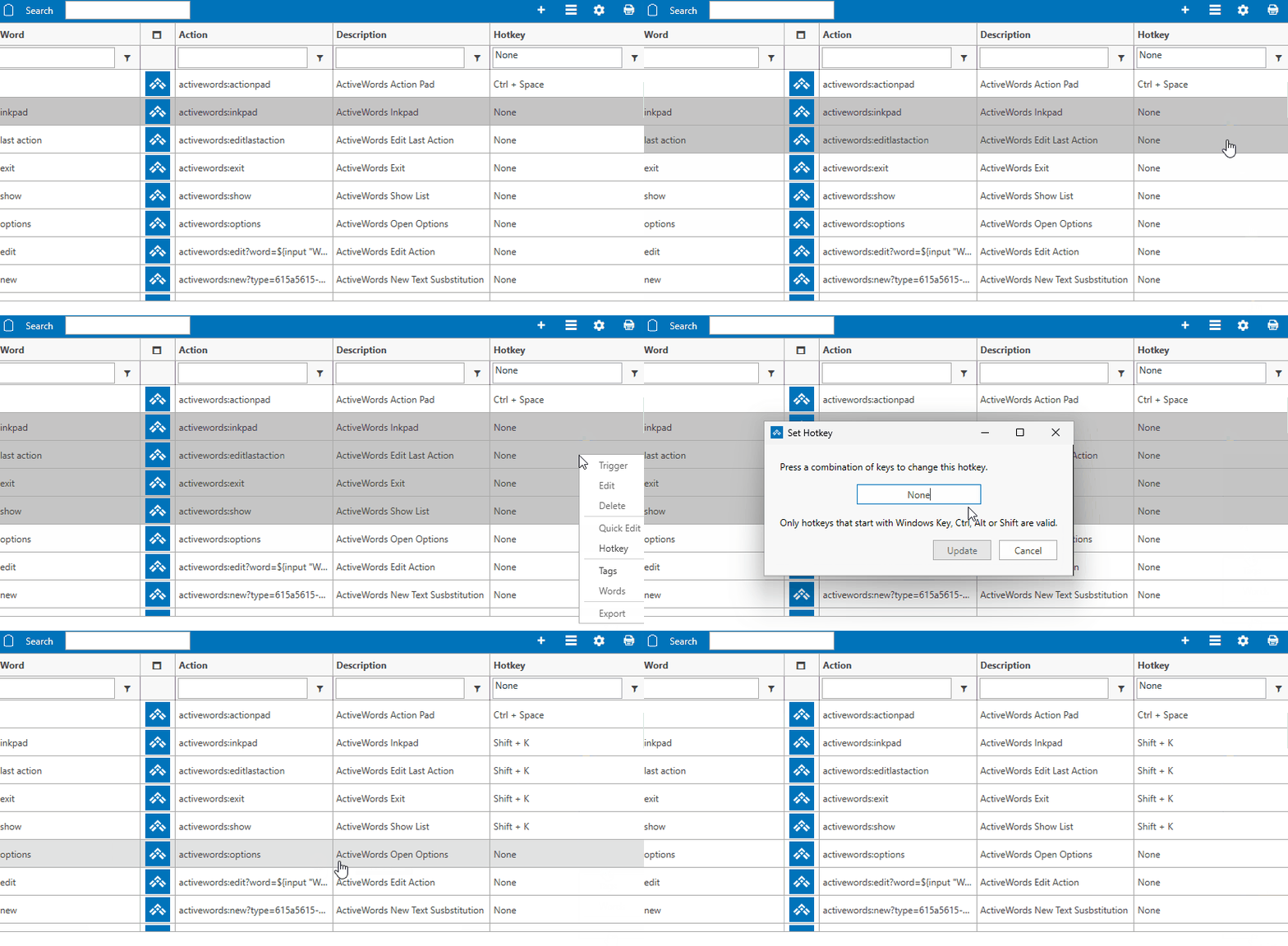
Assigning a Hotkey
To set a hotkey, simply press the key combination you want on your keyboard. ActiveWords captures it and assigns it. No need to type or select from a list.
Using the Same Hotkey for Multiple Actions
You can assign the same hotkey to multiple actions. When you press that hotkey, ActiveWords displays a Pick List showing all actions that use it. Select the one you want and it runs immediately.
This is useful when you want one key to access several related actions—for example, multiple Selected Text actions (Bing, Google Translate, LinkedIn) or several frequently used Words.
Note: You can change hotkeys for multiple actions at once from the main ActiveWords window: select multiple actions, right-click, then choose Hotkey (or the equivalent hotkey command) and press the key combination you want.
What's Different in Version 5
- ActionPad hotkey – Now configured only in the ActionPad tab (previously available in multiple places)
- Per-action hotkeys – Assign hotkeys directly when editing any action
- Shared hotkeys – Multiple actions can share the same hotkey; a Pick List lets you choose which one to run
Related FAQs
- ActionPad – Configure the ActionPad hotkey
- Selected Text – Assign hotkeys to Selected Text actions
- Pick Lists – When multiple actions share a hotkey