The ActionPad is a quick-launch input field that appears on demand. It provides a single place to enter and trigger your Words, act on text using Selected Text actions, search your computer, perform calculations, and more.
Opening the ActionPad
Press Ctrl+Space (the default hotkey) to open the ActionPad. You can change this hotkey in Options → ActionPad tab. In ActiveWords 5, the ActionPad hotkey is configured in one place only—the ActionPad tab—to avoid confusion.
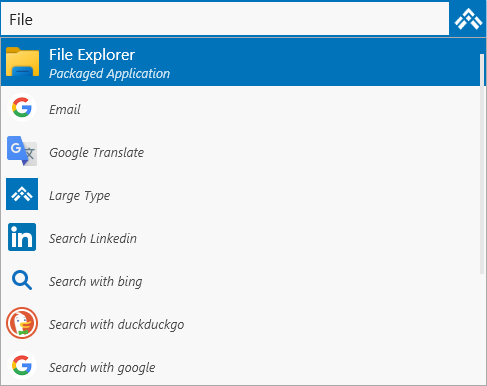
What the ActionPad Can Do
The ActionPad has been significantly extended in Version 5. When you type, it searches according to your settings in Options. By default, it can find:
- ActiveWords – Your Words and their associated actions
- Folders – Files and folders on your computer
- Applications – Installed programs (including packaged apps from the Microsoft Store)
- Start Menu items – Programs and shortcuts from the Windows Start menu
- Selected Text actions – Type or paste text, press Enter, and choose an action (e.g., Google Translate, Bing search) to run with that text
- Advanced Calculator – Enable for math calculations in the ActionPad
- Date Calculations – Enable for date arithmetic (e.g.,
today+1month) - Math Calculations – Enable for math in the ActionPad (e.g., 2+2)
- Window Search – When enabled, search your computer for folders, applications, and Start Menu items
- Calendar Functions – Enable for date expressions (e.g., today, next Friday)
Select any result and press Enter (or click) to trigger it. The action runs in the context where you were working.
Note: If typed text does not match any action, only Selected Text actions are shown.
Configuring the ActionPad
Open the ActionPad Options tab to customize what appears and how it behaves.
Using the ActionPad with Selected Text
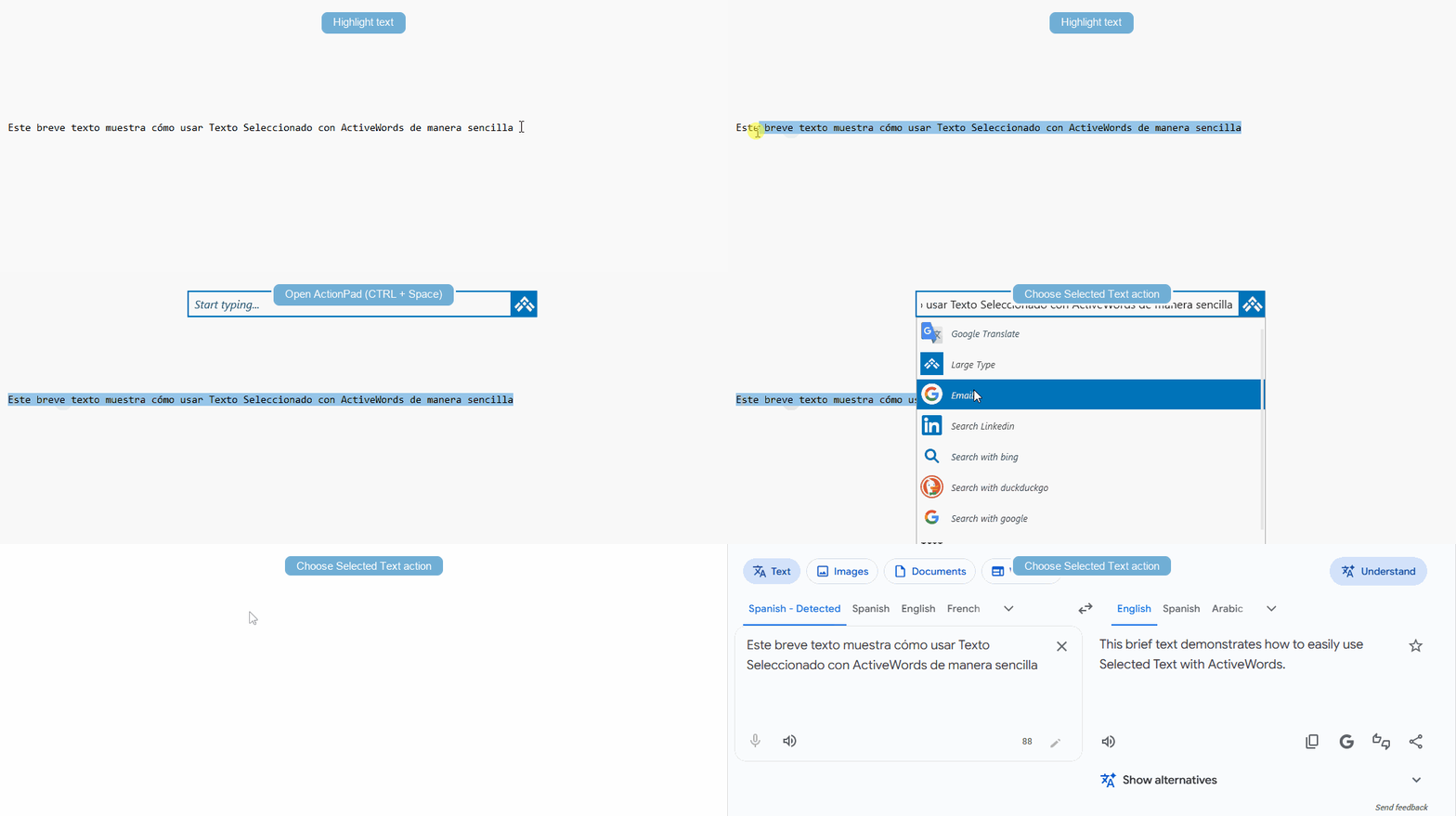
The ActionPad works seamlessly with Selected Text. Type or paste text into the ActionPad and choose a Selected Text action (such as Google Translate or Bing search) from the results. The action executes instantly with your text.
Using the ActionPad to Trigger Words
You can also use the ActionPad when you don't want to type a Word in your current context (e.g., in a web form or email). Open the ActionPad, type your Word, press Enter, and the associated action runs. Words triggered from the ActionPad do not include a trailing delimiter in text substitutions.
Related FAQs
- Selected Text – Act on highlighted or pasted text
- Hotkeys – Customize the ActionPad hotkey and other shortcuts