After installing ActiveWords, you’ll need to activate your license. If you don’t have one yet, you can start with a free trial, then upgrade when you’re ready. This guide covers everything you need to know about activating, upgrading, renewing, and deactivating your ActiveWords license.
If you're looking for information about managing multiple computers or your license status, see Managing Your Licenses.
Before You Begin
Make sure you have:
- Your ActiveWords license file (sent by email and available on the Manage Licenses page)
- An internet connection for activation and renewal
- The latest version of ActiveWords installed
Starting Your Free Trial
If you don’t have a license yet, you can start with a free trial from the License dialog.
- Open ActiveWords.
- Right-click the ActiveWords desktop icon or the System Tray icon and select License.
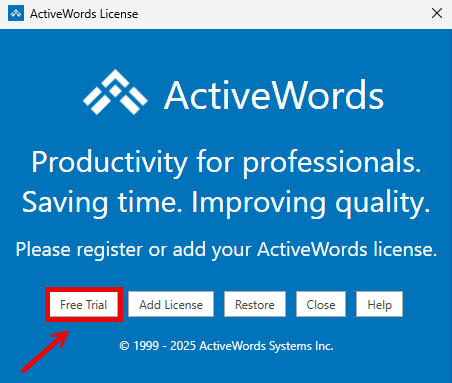
- Click Free Trial.
- Your browser will open to the Free Trial registration page.
- Enter your Email Address, First Name, and Last Name, then click Submit.
- When you receive the license email, download the attached license file.
- Double-click the downloaded license file to activate.
Activating Your License
When you purchase ActiveWords, you will receive an email with your license file attached.
Activate using your license file
- Locate the license file you downloaded from your email.
- Double-click the downloaded license file.
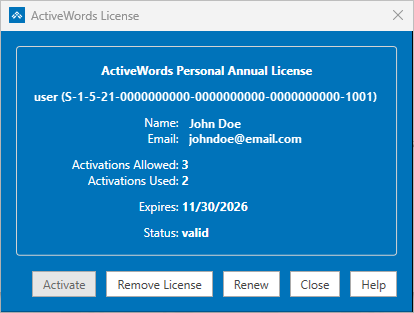
- ActiveWords will open the License dialog and activate automatically (status will show valid and Activate will be greyed out).
Activate from inside ActiveWords
If you already saved the license file on your computer:
- Launch ActiveWords.
- Right-click the ActiveWords desktop icon or the System Tray icon.
- Select License.
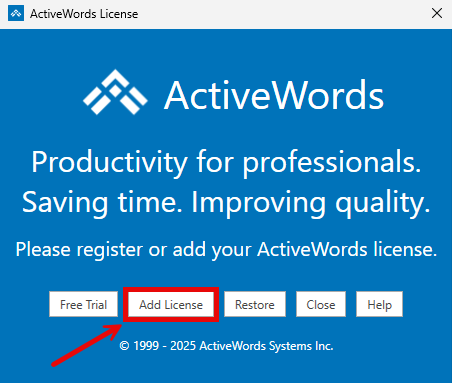
- Click Add License.
- Browse to your license file, select the file, and click Open.
Upgrading or Renewing Your License
You can upgrade from a trial to a full license or renew an expiring one from the same place.
- Open ActiveWords.
- Right-click the ActiveWords icon and select License.
- Depending on your status, you will see one of the following options:
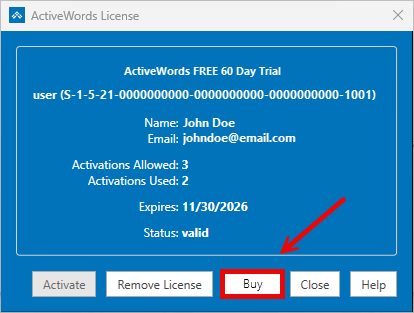
- Buy if you are on a trial
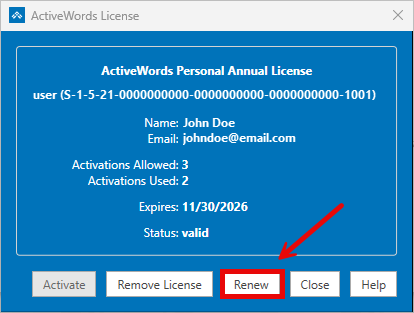
- Renew if you already have a full license
- Click the button shown and your browser will open to the checkout page.
- Complete the purchase and your license will update automatically.
Deactivating Your License
If you need to move a license to a different computer, deactivate it first.
Deactivate inside ActiveWords
- Open ActiveWords.
- Right-click the ActiveWords desktop icon or the System Tray icon and select License.
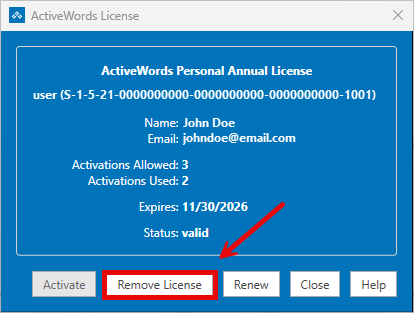
- Click Remove License.
- The current machine will no longer use an activation.
Deactivate from the ActiveWords website
You can also deactivate a computer directly from your ActiveWords account. This is useful when you replace a computer or no longer have access to the old machine.
- Go to ActiveWords.com.
- In the top menu, select Resources → Manage Licenses.
- Under the License Keys column, click View Licenses for the license you want to manage.
- Select Manage Activations.
- Find the User ID that matches the computer you want to deactivate.

- Click Deactivate next to that entry.
After deactivating a machine from the website, restart ActiveWords on that computer to ensure the License dialog updates and shows the Activate button again.
Finding Your User ID
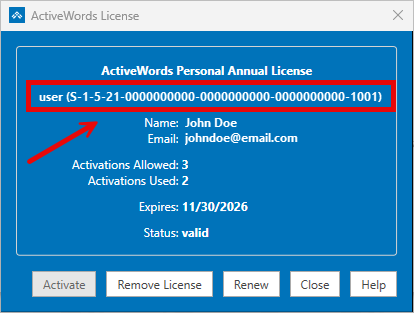
Each computer has a unique User ID that ActiveWords uses to track license activations.
You can find this number in the License dialog.
This same User ID also appears on the Manage Licenses page of the ActiveWords website.
Use the User ID to:
- Troubleshoot activation issues
- Identify which computer is currently activated
- Remove or deactivate old computers
Troubleshooting
I activated the wrong computer
Deactivate the license for that computer from the ActiveWords website, then activate the correct computer.
I don’t recognize a computer or name listed
In ActiveWords, locate the User ID shown in the License dialog, then match that User ID to the corresponding entry on the Manage Licenses page on the website.
My license didn’t update after purchase
Restart ActiveWords, then reopen the License dialog using the desktop icon or system tray icon to refresh the license information.
I lost my license email
You can download your license file again from the Manage Licenses page on the ActiveWords website.
Next Steps
For instructions on managing multiple computers or viewing your license status, see: